Introducing ExCode

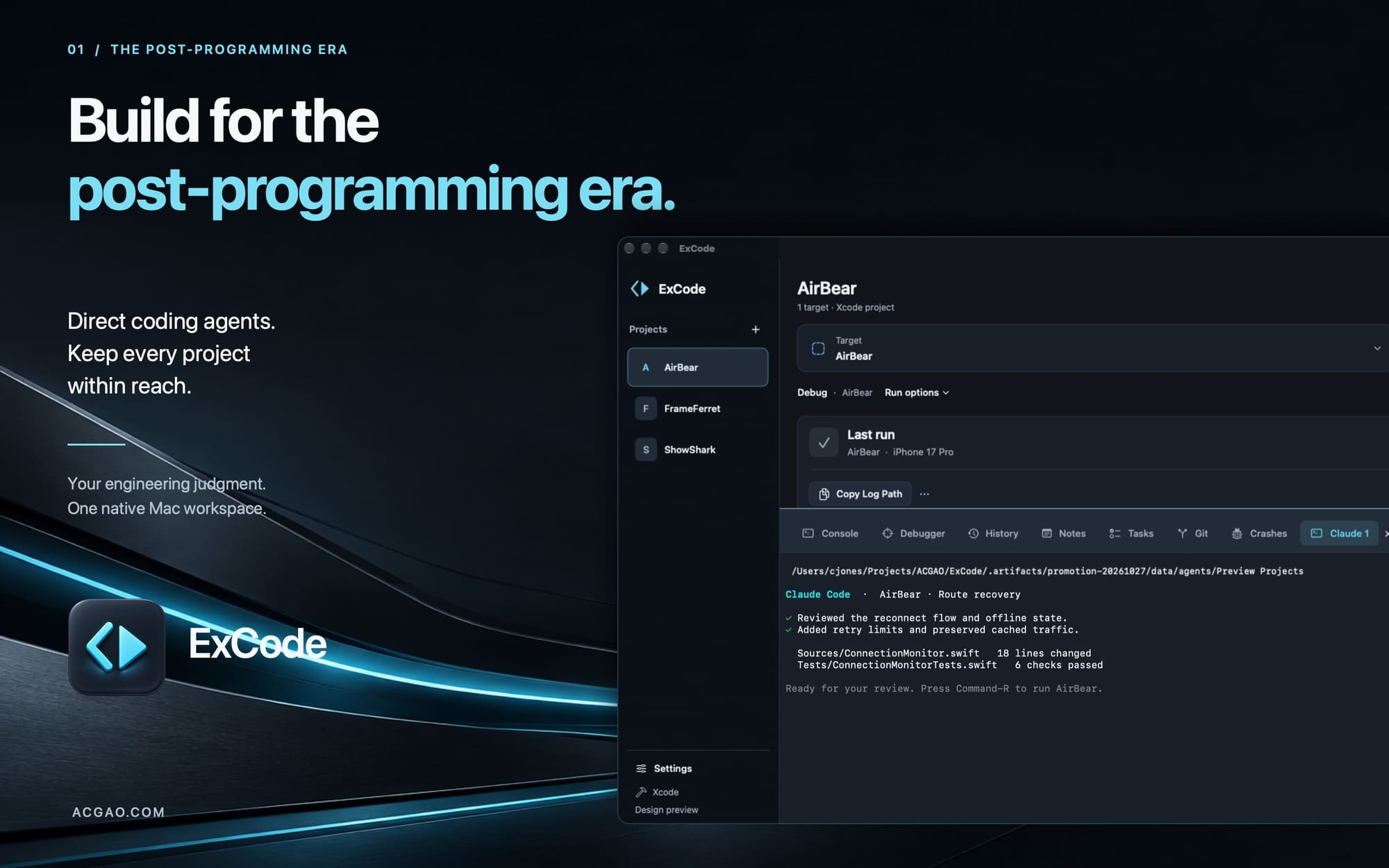
ExCode is built for engineers pursuing 10× productivity in the post-coding era. Direct coding agents, run applications, and manage development from one native Mac workspace.
You define what the software should do. You set the constraints, assign changes to agents, and decide whether the results meet your requirements. ExCode brings the tools for that work together: coding agents, builds, Git, Sentry, logs, notes, and tasks.
The goal is to spend more of your day making engineering decisions. Let agents implement the changes while you control the direction and verify the software.
Get ExCode Now
- Web Download (Apple Notarized App)
Direct development at a higher level
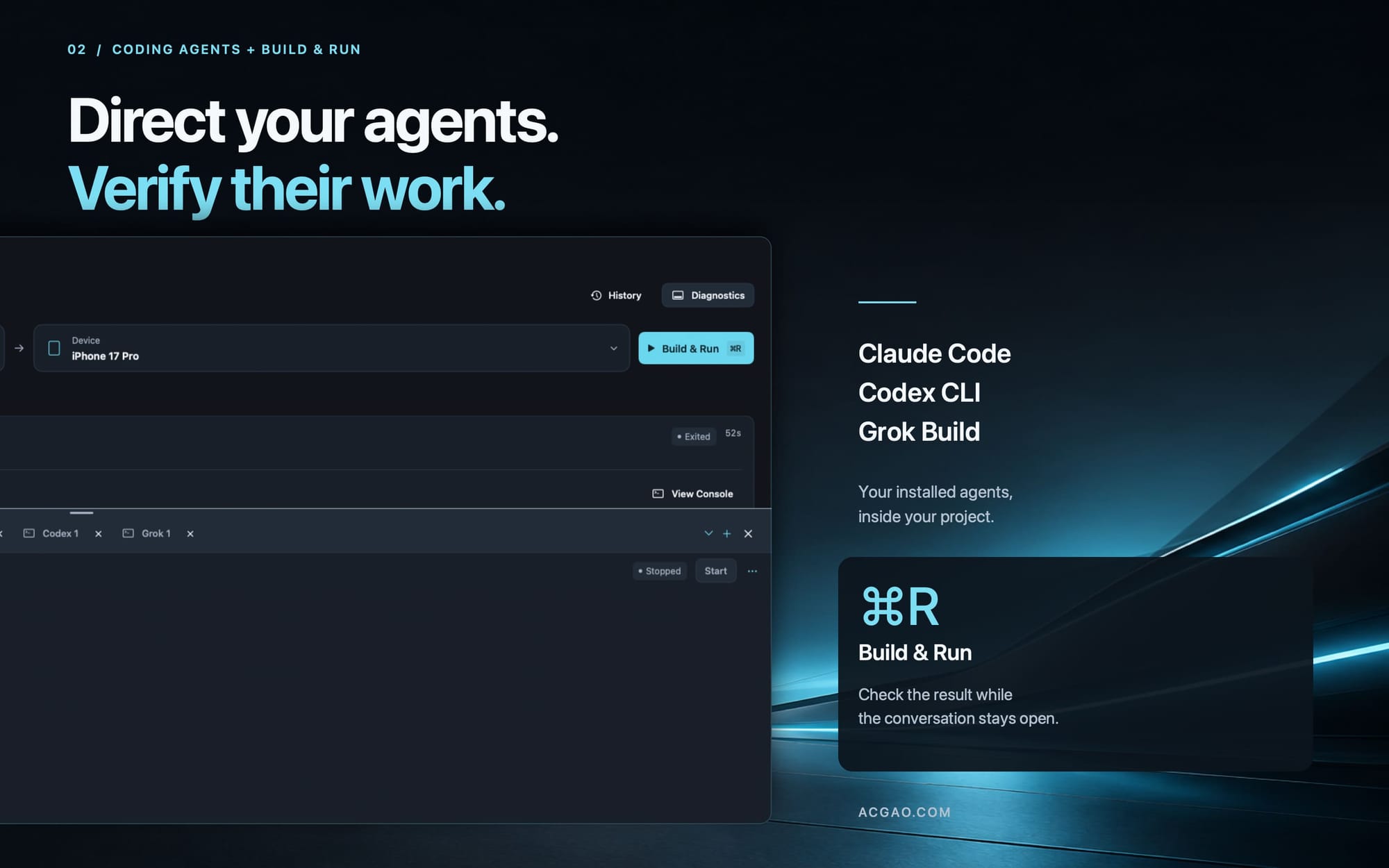
Open Claude Code, Codex CLI, or Grok Build inside the project you are working on. Give an agent a feature to implement, a failure to investigate, or a change to review.
Your agents run in project terminal tabs, with their familiar interfaces and approval controls. Open several terminals when you need them. Switch projects while agents continue their work. Attention indicators show which terminals need your input.
You can review one project's changes while an agent works on another.
Keep your tools with your project
ExCode reduces the work of switching between browser tabs, terminals, and separate utilities throughout the day.
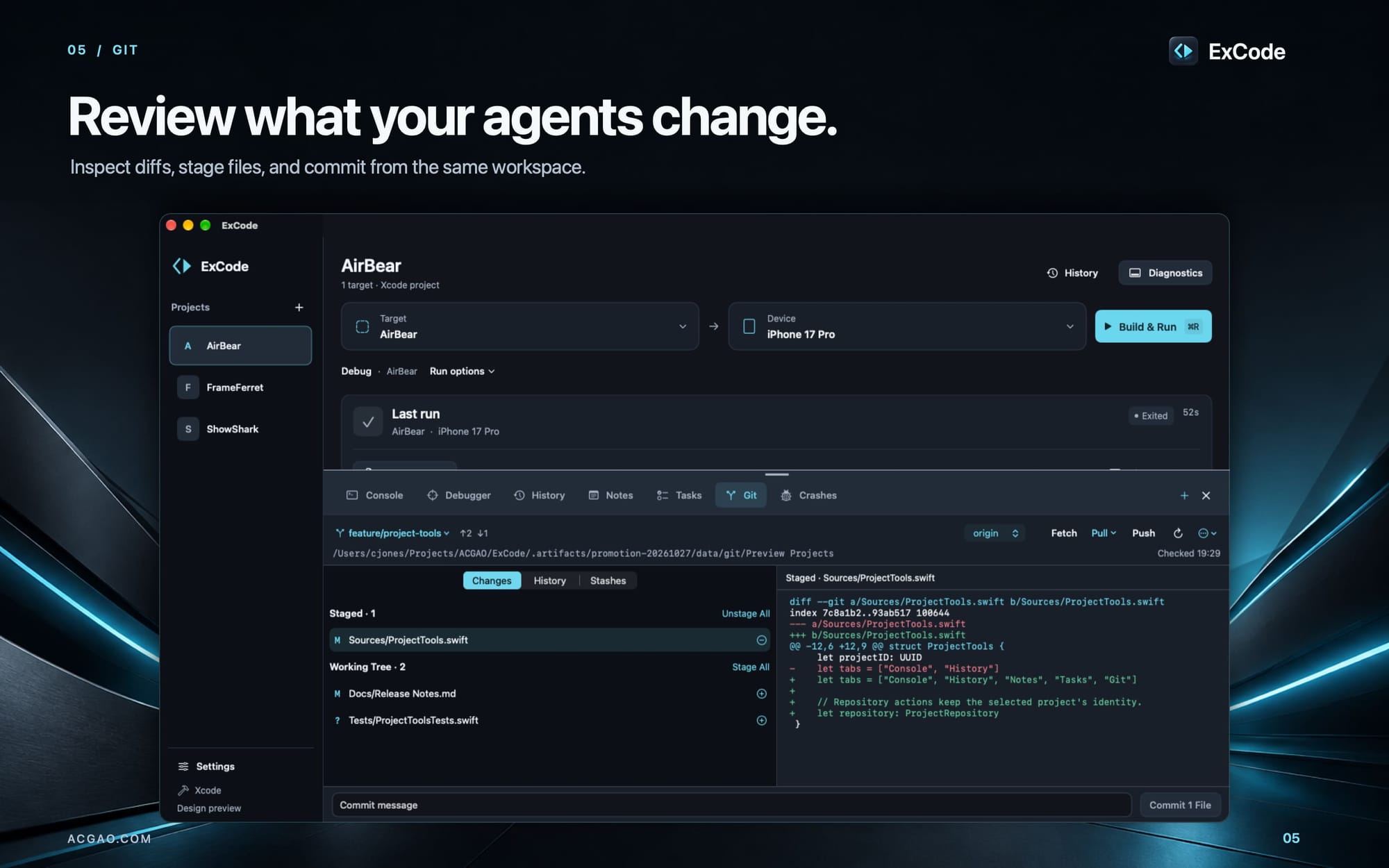
ExCode brings Sentry issue review, Git operations, build controls, and project records into the same workspace. Select a project to find its agents, changes, crash reports, notes, and tasks.
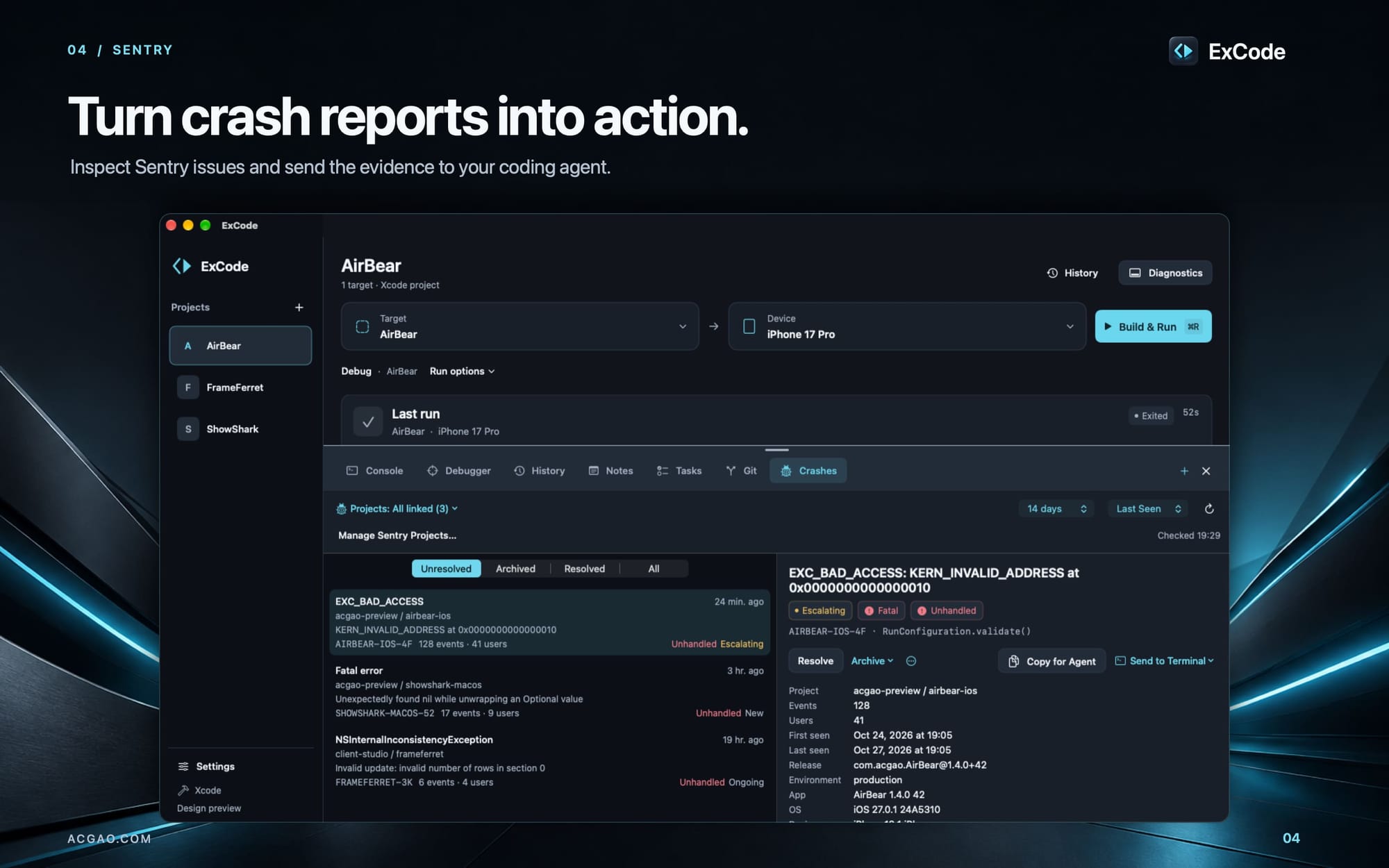
Review a Sentry exception, send its details to an agent, and inspect the resulting changes in Git. Your build controls stay available as you work.
App Store Connect is a planned integration. It will extend this approach to release management, bringing more of the work around an application into ExCode.
Take a reported crash through to a verified fix
Consider a crash reported through Sentry. ExCode gives you a direct path from the report to checking a change.
- Inspect the problem. Open the project's Crashes tab. Review the exception, stack frames, breadcrumbs, release, and device details.
- Give the agent the evidence. Use Send to Terminal to place the issue summary in a project terminal. Review it, add your instructions, and submit it.
- Review the proposed change. Use the Git tab to inspect the files the agent changed. Ask for corrections where needed.
- Run the application. Select the target and device, then press ⌘R. Check the behavior you wanted to change.
- Use the result to direct further work. If the run fails, use Copy Log Path to give the local agent its recorded output.
- Record the verified change. Stage and commit the accepted changes in Git. Update the Sentry issue from ExCode.
Keep several projects moving
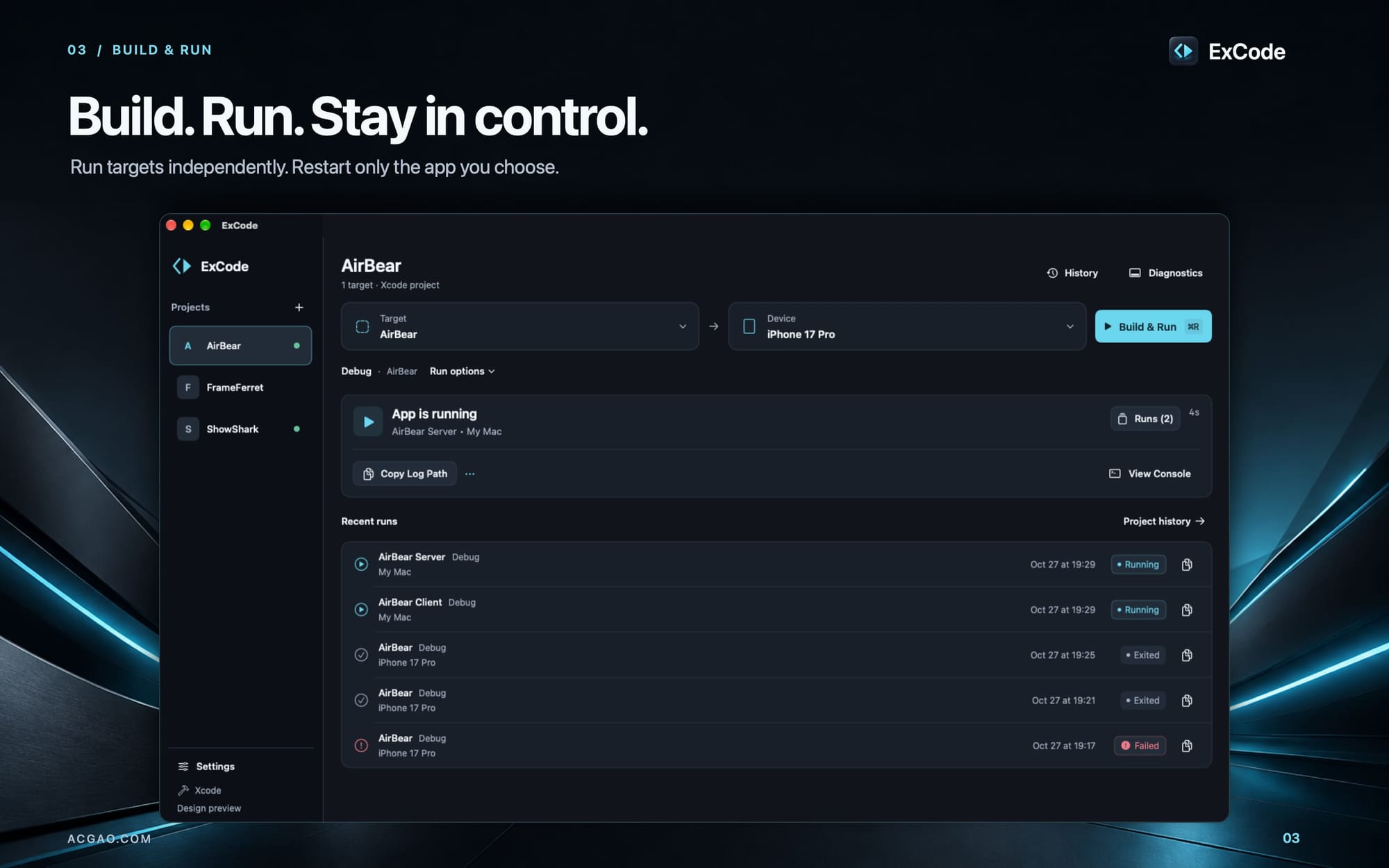
ExCode supports separate runs for different targets and devices. Run a Mac client and server together. Rebuild the client while the server continues running.
Switch projects while runs and agent terminals continue. Return to each project's controls and history when you need them. Remembered target, scheme, configuration, and device selections reduce repeated setup.
This lets you use the time between agent responses and builds to advance other work.
Give your agents useful evidence
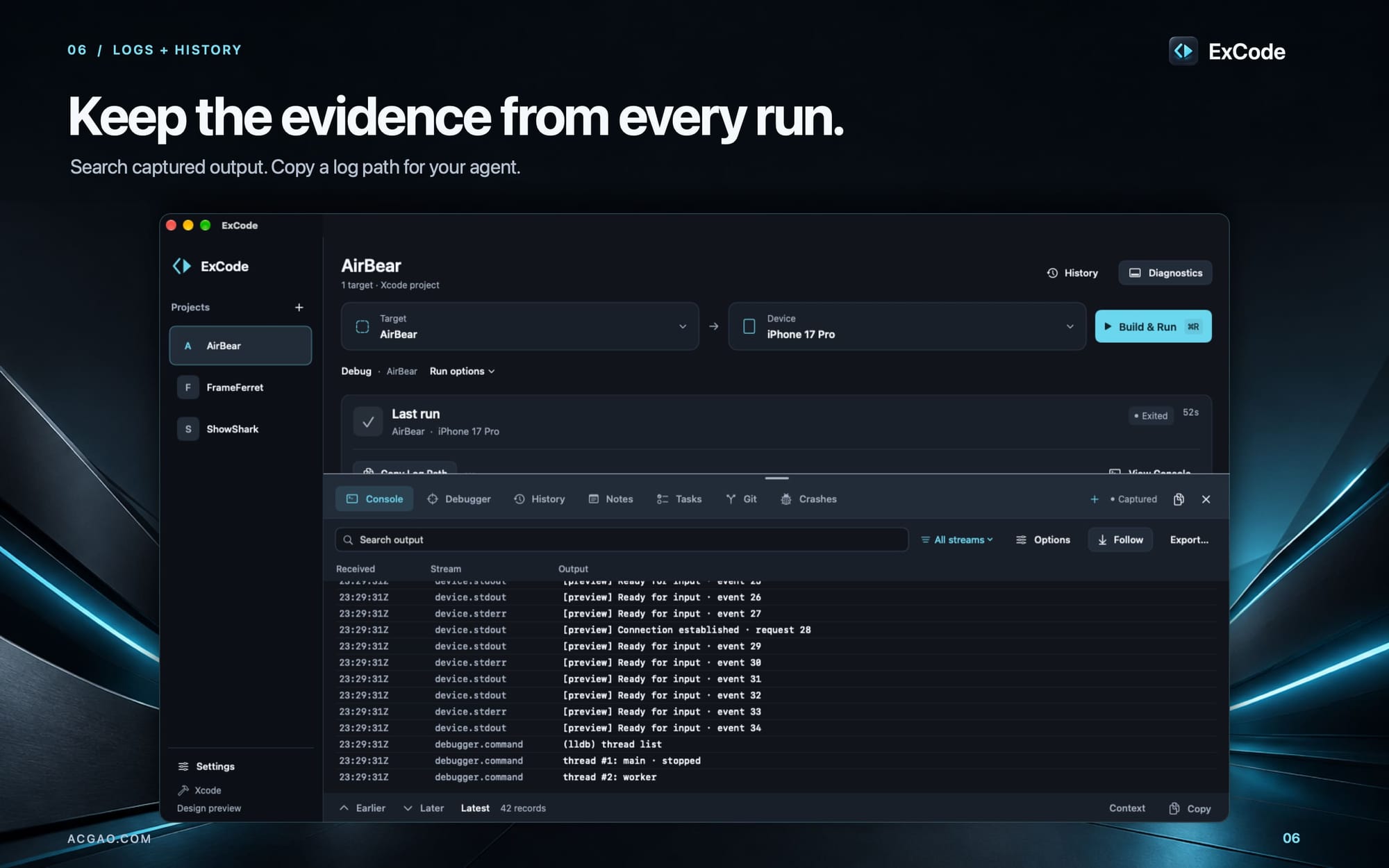
ExCode automatically records captured build, application, and debugger output for each run. Logs remain available after the run ends and after ExCode restarts.
Copy a log path without opening the console or exporting text. Search earlier runs when a problem returns. Give an agent the recorded details it needs to investigate.
When you need direct inspection, pause the app to examine threads, stack frames, and available variables. Saved debugger snapshots retain captured state for later review.
Preserve the decisions behind the work
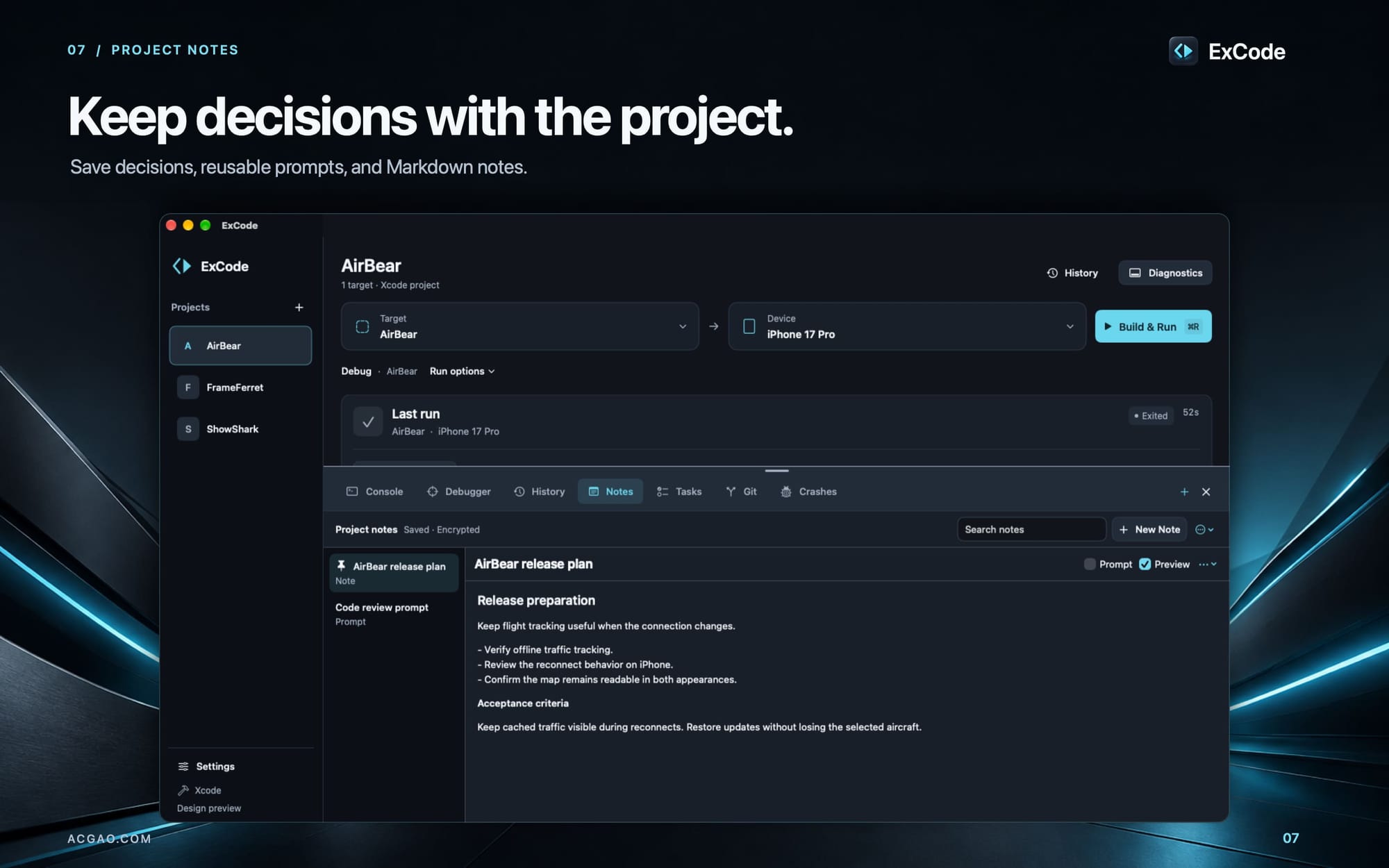
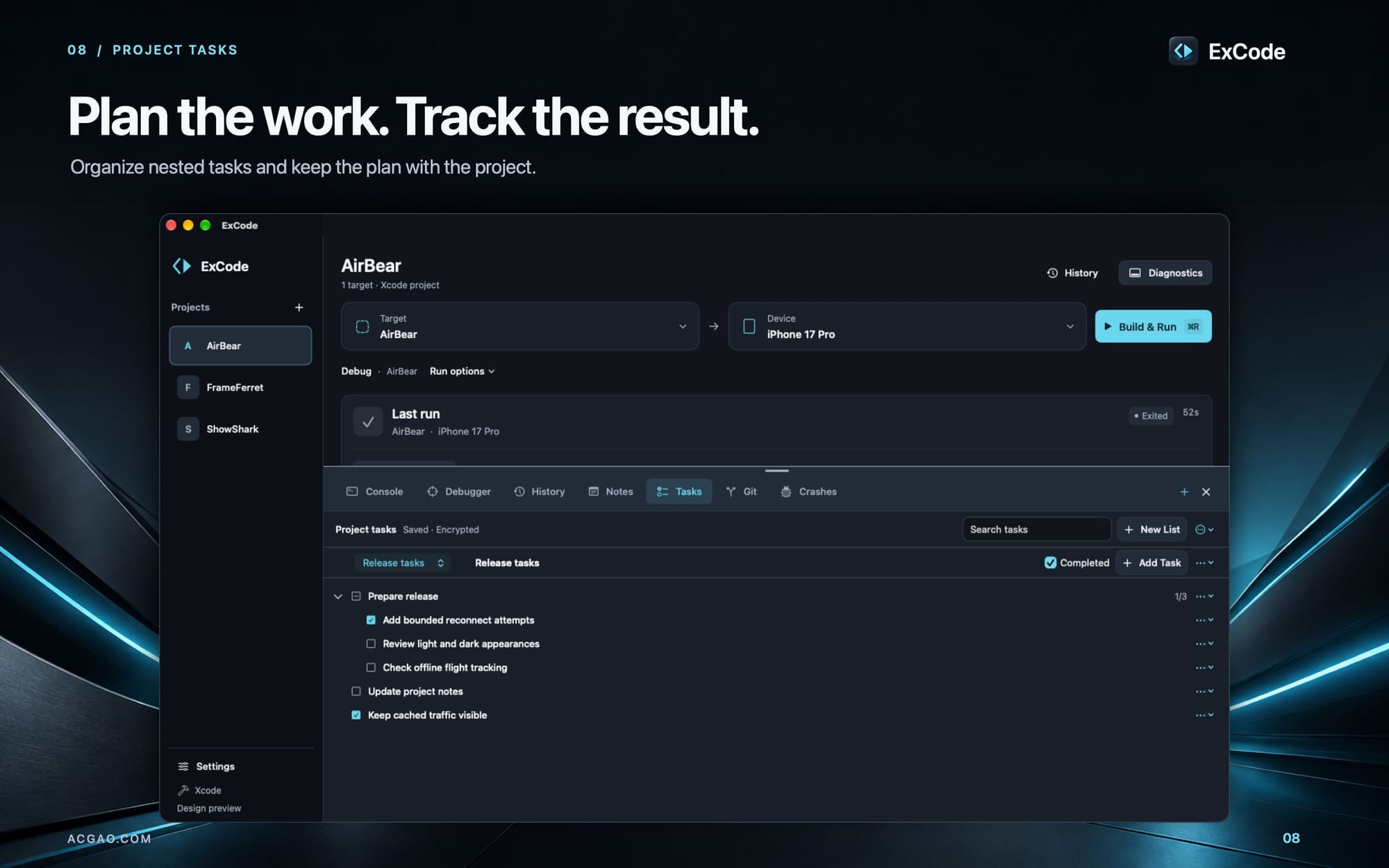
Keep requirements, decisions, and reusable prompts in project notes. Prompt mode preserves the exact text you give an agent. Use nested task lists to track the work and link tasks to supporting notes.
Notes and tasks save locally in encrypted storage. Markdown exports and encrypted backups let you retain and recover that project knowledge.
Bring your development into ExCode
Bring an existing Xcode project or workspace and your installed coding agents. ExCode uses your Xcode tools through ExCode Companion, which you install from Settings.
Run native Mac apps on your Mac and iPhone and iPad apps on physical devices. Connect Sentry to bring reported problems into the same workspace.
Define the outcome. Direct the agents. Verify the result. ExCode puts the tools for this next generation of software development in one place.