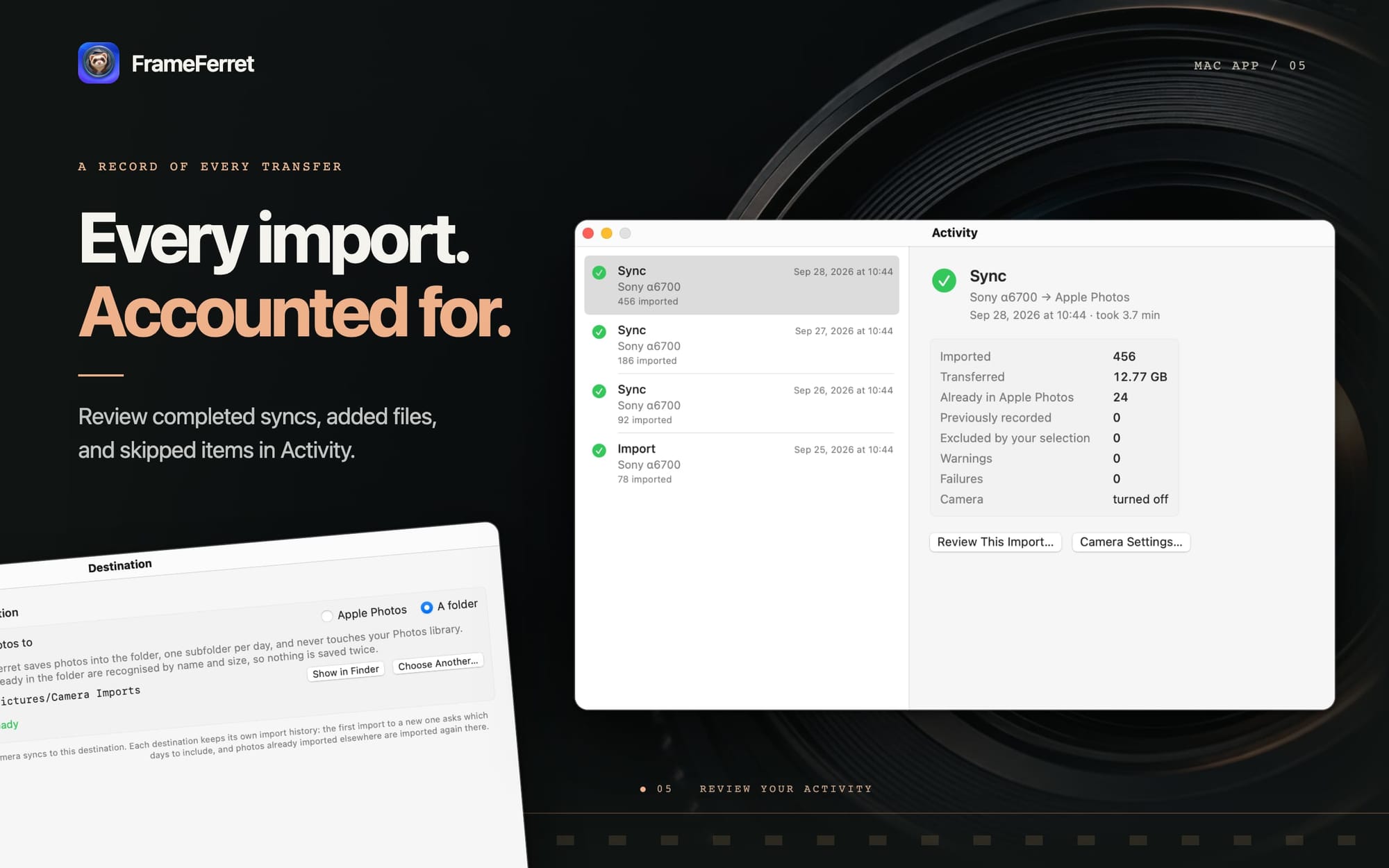
FrameFerret Release Notes v2026.11.21
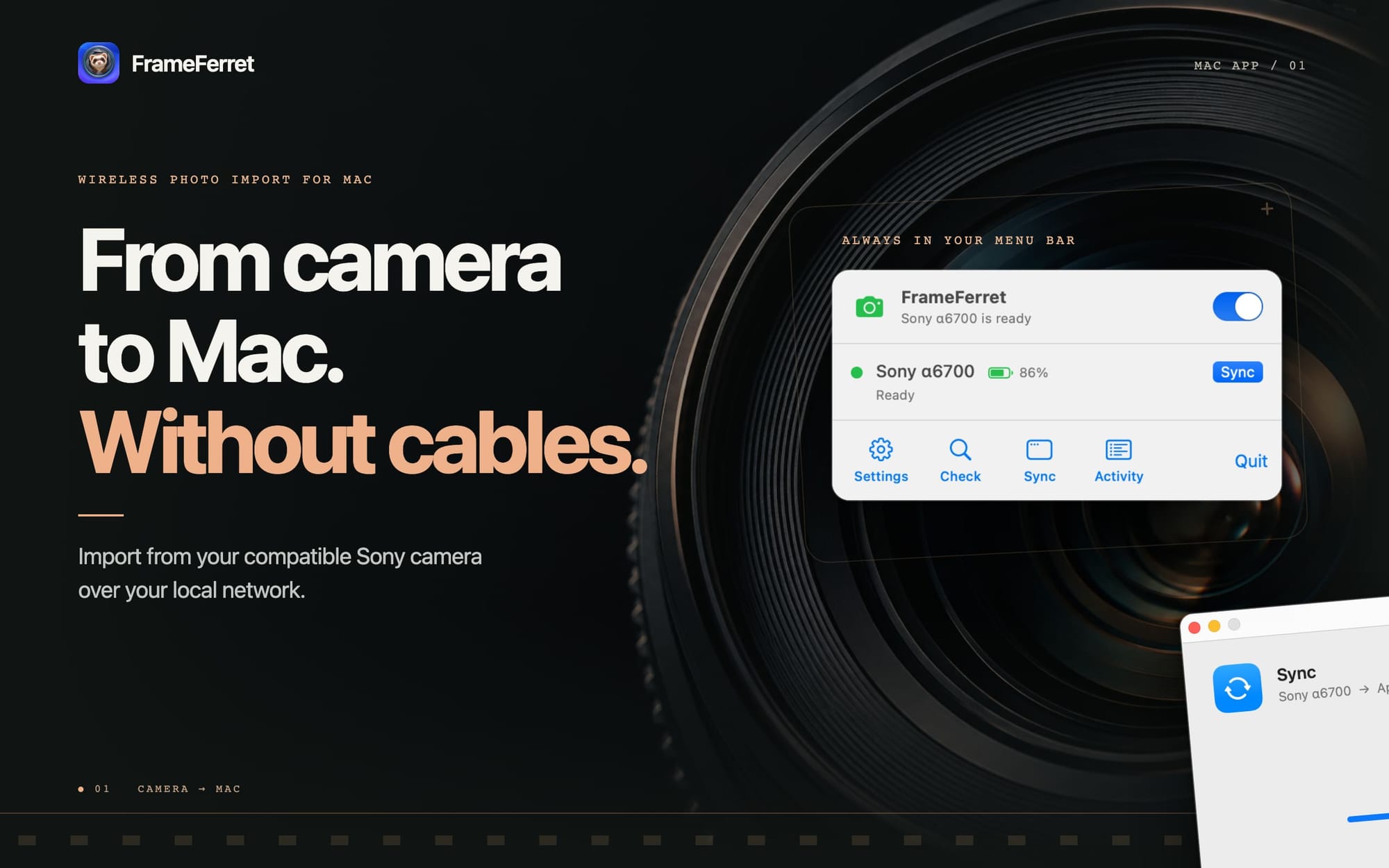
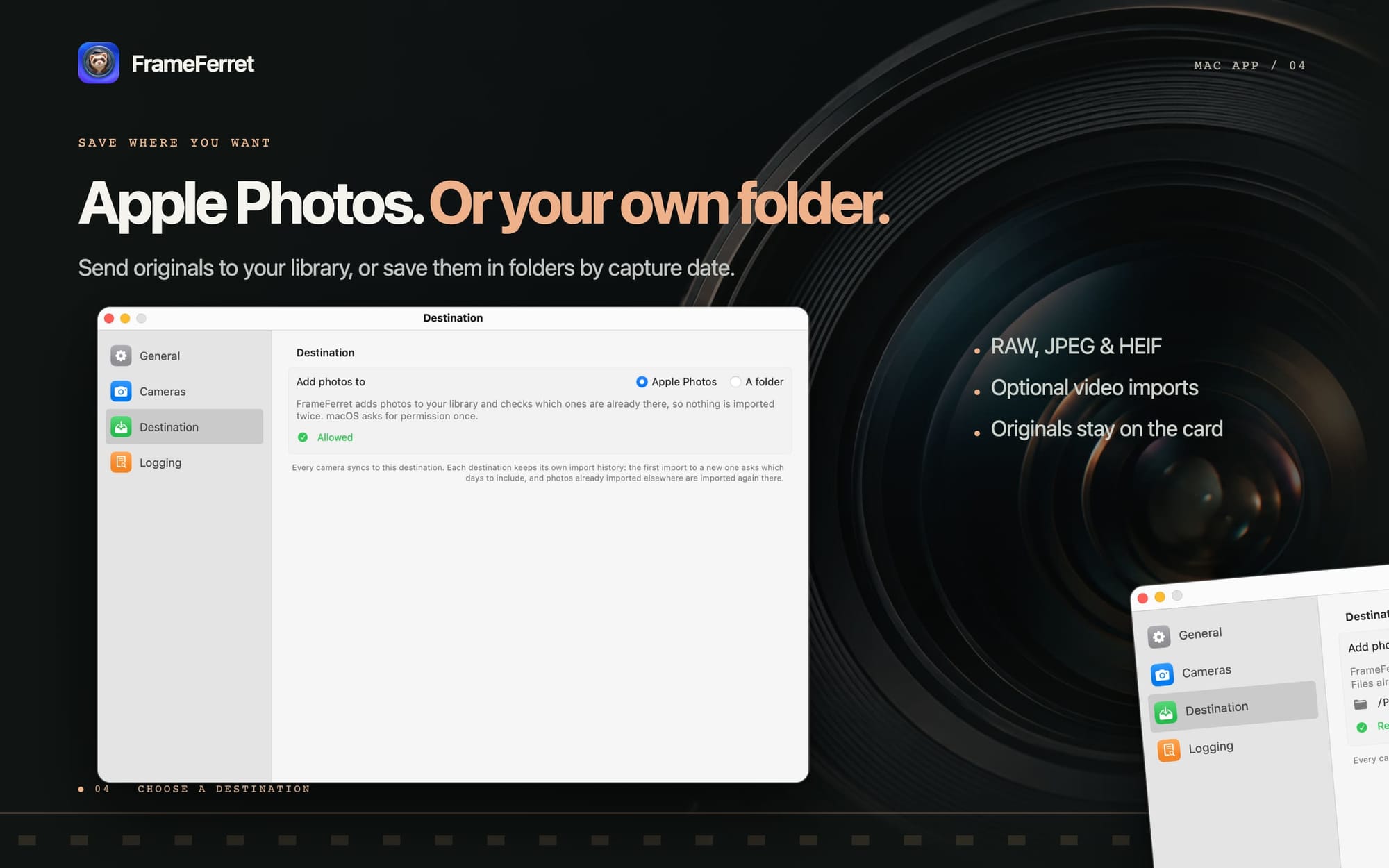
FrameFerret imports photos and videos from compatible Sony cameras to a Mac, into Apple Photos or a folder you choose.
Get FrameFerret Now
Download FrameFerret here.
Overview
- Import over a USB cable. Plug in a camera you already set up over Wi-Fi, and FrameFerret imports from it. It is the same camera with the same history, so nothing is imported twice. When the import is done, FrameFerret ejects the camera so you can unplug it safely.
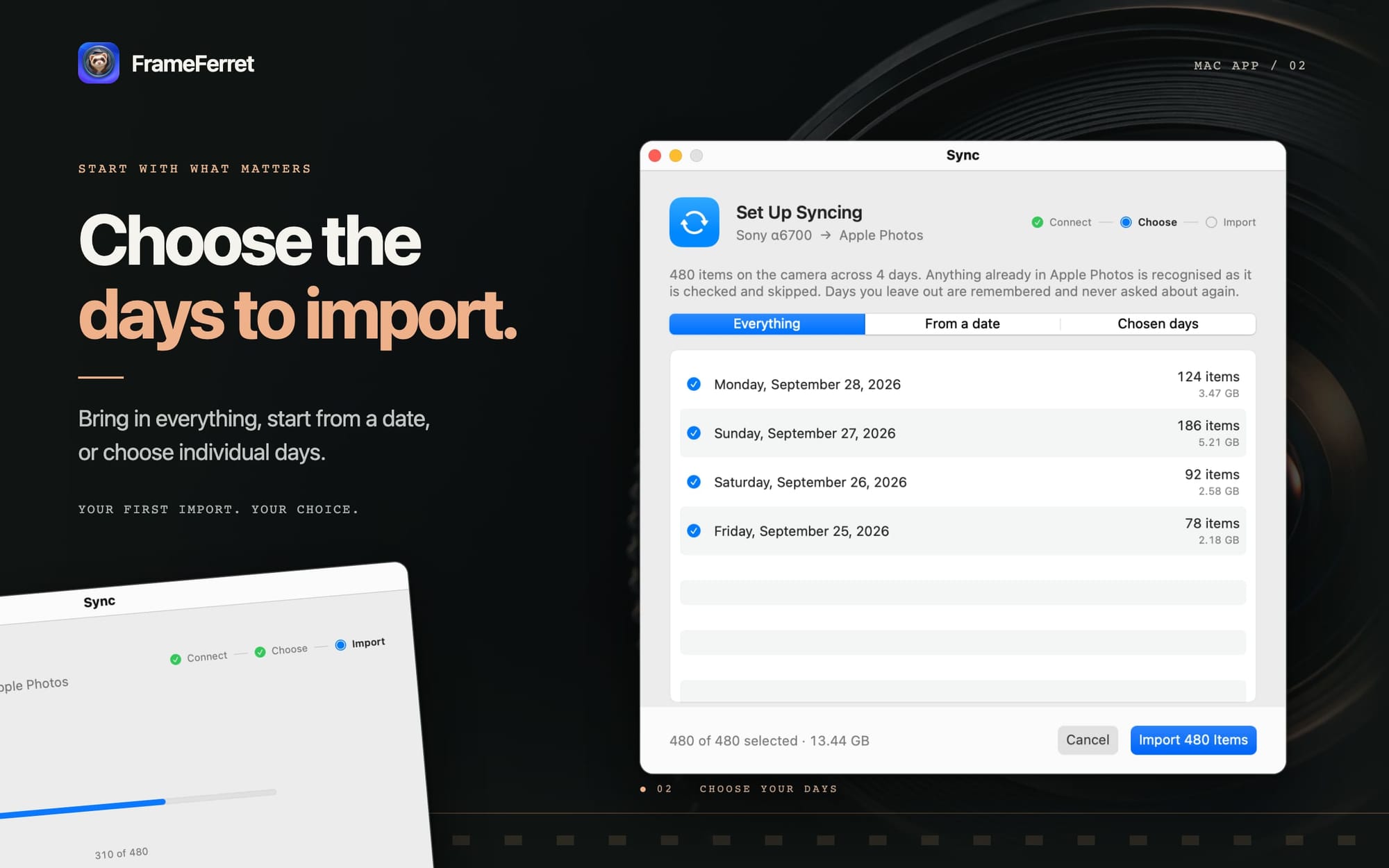
- No more repeat imports after a time zone change. Photos you already imported, or chose to skip, no longer come back as new when you travel with your Mac.
- Your camera is found faster. When the camera gets a new network address, FrameFerret finds it at launch and when you open the menu, without a long wait.
Import over USB
- Connect the camera to your Mac with its USB cable, and FrameFerret recognizes it as the camera you already set up. You do not have to change a setting on the camera.
- The menu bar shows "Ready, connected by USB" while the camera is plugged in.
- A USB import keeps the same import history as Wi-Fi. A photo that came in over Wi-Fi is not imported again over the cable, and the reverse is also true.
- The first time FrameFerret reads a memory card, macOS asks you to allow access to that card. FrameFerret remembers your answer. A card that you format in the camera asks again.
- After each import, FrameFerret ejects the camera, so macOS does not warn you when you pull the cable. If something else is using the card, the notification tells you to eject it in Finder first.
- FrameFerret never writes to or deletes from the card.
- Settings > Cameras shows when a camera also syncs by USB. If a different camera of the same model was linked by mistake, such as a friend's or a rental, click Remove. That camera is not linked again until you click Link Again.
Imports you can trust
- FrameFerret recognizes a photo it already imported even when the capture time reads differently. This happens when your Mac moves to another time zone, or when the camera's clock and the photo disagree. Before this change, a photo you had skipped or deleted could be imported again.
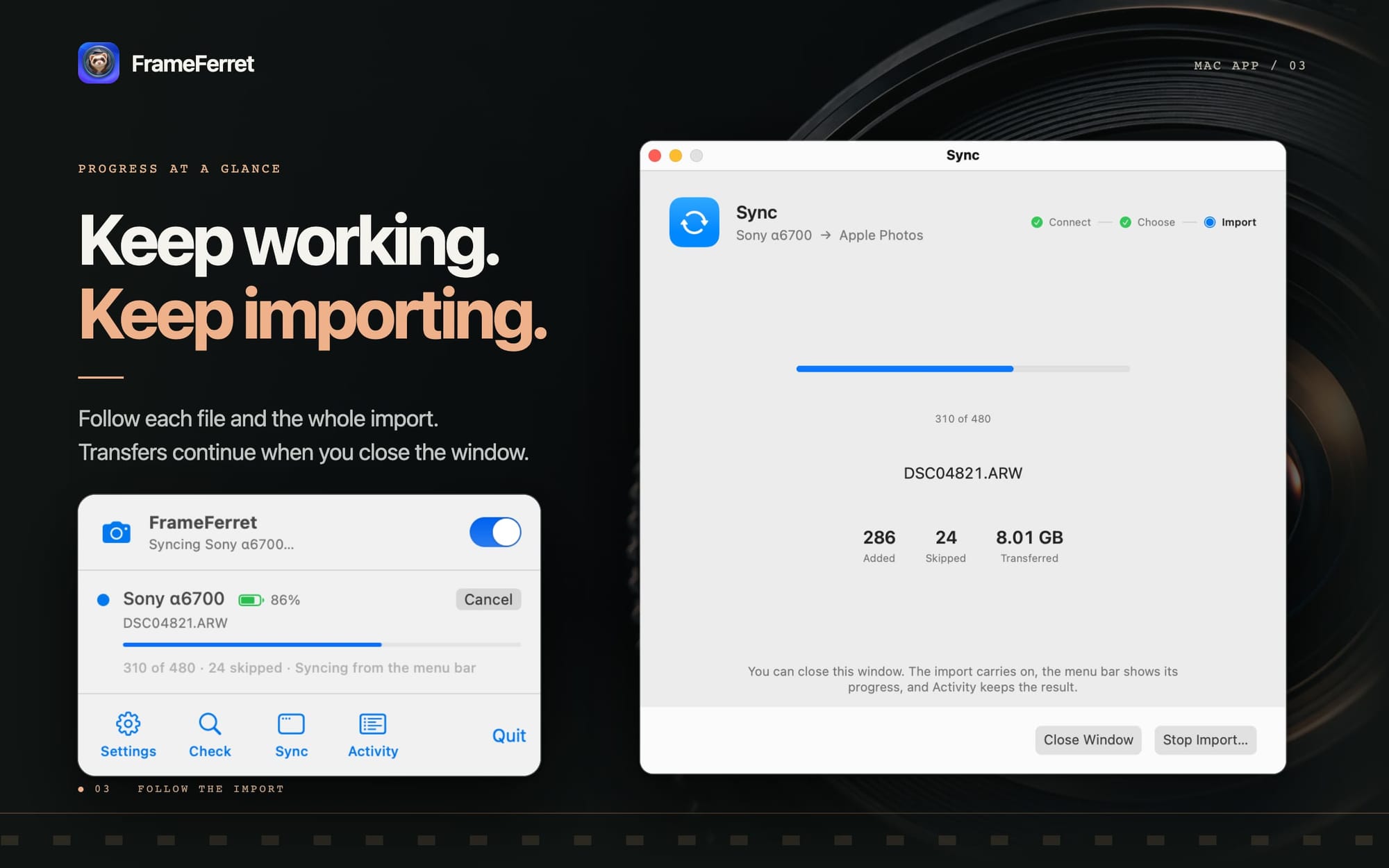
- Cancelling an import, closing the Sync window, and reconnecting to a camera are more dependable. A late reply from the camera can no longer disrupt the next import.
Finding your camera
- When your router gives the camera a new network address, FrameFerret finds it at launch and each time you open the menu.
- The menu bar no longer has a separate Check button. Opening the menu already checks for your cameras, and FrameFerret keeps watching in the background.
Upgrading
- Before a purchase starts, FrameFerret asks you to confirm that your camera already works with the app. A purchase unlocks imports. It does not add support for a camera model that FrameFerret does not support.
Menu bar, Dock, and Settings
- When "Always show in the Dock and app switcher" is off, FrameFerret now shows its Dock icon while one of its windows is open. You can switch back to Activity, Sync, or Settings with the Dock or the app switcher. The icon goes away when you close the window.
- Our Apps is a new Settings pane that shows ACGAO's other apps, with links to the Mac App Store, TestFlight, and each app's website. The menu bar also has a shortcut to it.
- The Logging pane is now named Support. It uses the same layout as ACGAO's other apps to save diagnostic logs or send them to support. Your existing logs and reply address carry over.