ShowShark: Your YouTube Library, Upgraded
You've spent years curating your YouTube subscriptions. Tech deep-dives from MKBHD. History lessons from Dan Carlin. Cooking adventures with Kenji. But YouTube's own interface buries your favorites in an algorithmic feed, and one day those videos might just... disappear.
So you did the smart thing: you downloaded them. Maybe you've got a folder somewhere with hundreds — or thousands — of videos from your favorite creators, neatly organized by channel. Good for you.
Now what?
What if you could browse those videos the same way you browse your TV shows — by season and episode, with rich metadata, descriptions, thumbnails, and the ability to stream them to any screen in your house? What if you could create a virtual "TV channel" that plays your favorite creators back-to-back, with a full programming guide showing what's on next?
That's what ShowShark's YouTube library support does. It takes your local collection of YouTube downloads and transforms it into a first-class media library — complete with metadata pulled directly from the YouTube Data API, per-minute thumbnail previews, offline downloads to your phone, and virtual channels that turn your collection into appointment television.
Here's how to set it all up.
What You'll Need
- ShowShark Server running on your Mac
- ShowShark Client on your iPhone, iPad, Apple TV, Mac, or Vision Pro
- A folder of downloaded YouTube videos, organized by channel name
- A Google API key with YouTube Data API v3 access (free tier is fine — we'll walk through it)
Step 1: Organize Your Downloads
ShowShark expects your YouTube downloads to follow a simple folder structure: one subfolder per channel.
YouTube/
├── Marques Brownlee/
│   ├── 20240115 - iPhone 16 Review [abc123defgh].mp4
│   ├── 20240203 - Best Laptops 2024 [xyz789abcde].mp4
│   └── ...
├── Babish Culinary Universe/
│   ├── 20231028 - Basics with Babish - Pasta [qrs456tuvwx].mp4
│   └── ...
└── Kurzgesagt/
    ├── 20240312 - The Egg [lmn012opqrs].mp4
    └── ...
Each channel folder becomes a show in your library. The videos inside become episodes.
Filename Tips
ShowShark is pretty flexible with filenames, but here's what helps it work best:
- Dates in the filename become season and episode numbers.
20240115(January 15, 2024) becomes Season 2024, Episode 115. This means your episodes are automatically organized chronologically by year. ShowShark recognizes several date formats:20240115,2024-01-15,01-15-2024, and more. - Video IDs in square brackets like
[abc123defgh]let ShowShark match your file directly to the YouTube API for rich metadata. Most download tools (yt-dlp, for example) include this automatically. - Nested subfolders are fine. If you organize by playlist within a channel folder, ShowShark rolls everything up to the parent channel. Only the immediate child of your YouTube location folder matters for determining the channel name.
If your files don't have dates, they'll land in a "Season 0" bucket — still perfectly browsable, just without the chronological organization.
Step 2: Get a Google API Key
To pull in video titles, descriptions, view counts, and thumbnails from YouTube, ShowShark needs a YouTube Data API key. This takes about five minutes.
- Go to the Google Cloud Console
- Create a new project (or use an existing one) — call it something like "ShowShark"
- Navigate to APIs & Services > Library
- Search for "YouTube Data API v3" and click Enable
- Go to APIs & Services > Credentials
- Click Create Credentials > API key
- Copy the key — you'll need it in the next step
Tip: The free tier gives you 10,000 quota units per day. A typical library scan uses a fraction of that. You can restrict the key to only the YouTube Data API for extra security.
Step 3: Add the YouTube Provider in ShowShark Server
Open ShowShark Server and navigate to the Providers tab.
- Click the Add (+) button
- In the provider picker, scroll down to the YouTube Providers section
- Select YouTube — described as "YouTube channel and video metadata"
- Paste your Google API key into the API key field
- Click Validate — ShowShark will test the key against the YouTube API
- If validation succeeds, click Save
Your API key is stored securely and displayed with most characters masked (e.g., AIza••••••••cX9s). You can edit or remove it at any time.
Step 4: Create a YouTube Library Location
Now tell ShowShark where your YouTube downloads live.
- Go to the Locations tab in ShowShark Server
- Click the Add (+) button
- In the type picker, select YouTube — it's the red play-button icon, described as "YouTube downloads and web video archives"
- A folder picker appears — navigate to your YouTube downloads folder and select it
- Give it a name if you'd like (defaults to the folder name)
Your YouTube location now appears in the locations list with a red icon. You can customize the icon if you want — click the icon chooser button in the location editor to pick from hundreds of SF Symbols.
Step 5: Scan Your Library
Time to let ShowShark discover your collection.
- Go to the Library tab
- Click Scan Now
ShowShark scans in two phases:
- Discovery: Quickly finds all media files across your locations
- Scanning: Processes each file — extracting duration, parsing filenames, and matching against the YouTube API for metadata
For YouTube files, the scanner does something special. For each video:
- It extracts the channel name from the folder structure
- It parses the date and video ID from the filename
- If a video ID is present, it looks up the video directly on YouTube (the most reliable match)
- If there's no video ID, it uses fuzzy title matching — comparing your filename against the channel's uploads list to find the best match
- Matched videos get enriched with the official title, full description, publish date, and view count
When the scan completes, your library stats will update to show your newly discovered shows and episodes.
Step 6: Browse Your YouTube Library on the Client
Open ShowShark on any of your devices. Your YouTube channels now appear as shows in your library.
Search and Discover
Tap the Search tab and type a channel name, video title, or keyword. Your YouTube shows appear alongside your other media in the search results.
Browse by Season
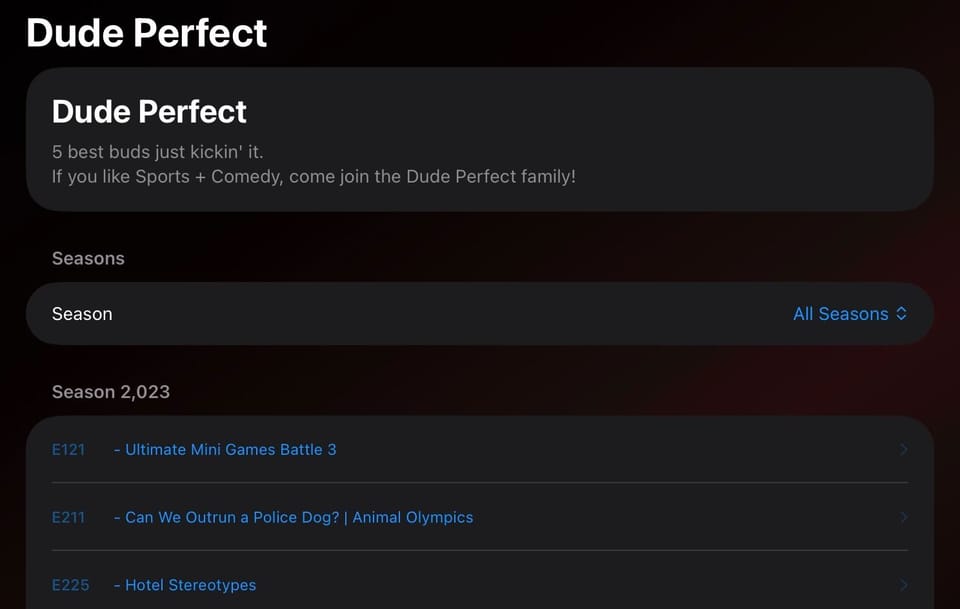
Tap a show (channel) to see its detail page. You'll find:
- The channel's description and metadata
- Seasons organized by year — Season 2024 contains all videos from 2024, Season 2023 from 2023, and so on
- A season picker to jump between years
Watch an Episode
Tap an episode to see its detail page with:
- The video's full description from YouTube
- Technical details — resolution, codec, file size, audio tracks
- A large thumbnail preview
Hit Play to start streaming. ShowShark transcodes on-the-fly with adaptive bitrate, so it works smoothly whether you're on Wi-Fi or a slower connection.
Per-Minute Thumbnails
Want to scrub through a video visually? Open the Thumbnails view for any episode to see a grid of snapshots — one for every minute of the video. Tap any thumbnail to see it full-size, and hit Play to jump directly to that timestamp.
Download for Offline
Heading somewhere without internet? On the episode detail page, tap the Download button (arrow icon in the toolbar). ShowShark transcodes the video server-side and streams it to your device for offline playback. You can monitor download progress and find your downloaded videos in the Downloads section.
Step 7: Create a YouTube Channel
Here's where it gets fun. ShowShark's Channels feature lets you create virtual TV channels — like building your own streaming network from your personal library.
In ShowShark Server:
- Go to the Channels tab
- Click the Add (+) button
- Select Video as the channel type
- Give your channel a name — something like "Tech Reviews" or "Cooking Shows"
- Under TV Show Titles, start typing the names of your YouTube channels (they're stored as shows, remember). An autocomplete dropdown helps you find them. Add as many as you like.
- Choose a programming order: Random shuffles episodes for variety, Alphabetical plays them in order
- Click Save
ShowShark generates a 24-hour programming schedule from the episodes in your selected shows. The schedule regenerates automatically, so there's always something on.
Mix and Match
There's nothing stopping you from mixing YouTube content with traditional media in the same channel. Want a channel that alternates between Kurzgesagt videos and Planet Earth episodes? Go for it — just add both shows to the same channel.
Step 8: Watch Your Channel
Back on the client, navigate to the Channels tab.
The Channel Guide
The channel guide shows you what's currently playing and what's coming up next across all your channels. Each entry shows the episode title, description, and its time slot.
Tune In
Tap on a channel or on the currently-airing program to start watching. ShowShark automatically picks up at the right point in the current episode — just like tuning into a live TV broadcast. When one episode ends, the next one starts automatically.
Tips and Tricks
Keep your downloads organized. The cleaner your folder structure, the better ShowShark can match and organize your content. One folder per channel is all it takes.
Video IDs matter. If your download tool includes the YouTube video ID in the filename (yt-dlp does this by default with the [videoID] suffix), ShowShark can match your files with near-perfect accuracy — even for unlisted videos.
Re-scan after adding new videos. Whenever you download new videos, just hit Scan Now again. ShowShark only processes new files, so subsequent scans are fast.
Refresh your channel schedule. After scanning new content, open your channel in the editor and click Refresh to regenerate the programming schedule with your new episodes included.
Metadata is optional. If you don't set up a YouTube API key, ShowShark still organizes your videos by channel and date — you just won't get the enriched descriptions and metadata from YouTube. You can always add the API key later and re-scan to backfill.