ShowShark Server Tutorial
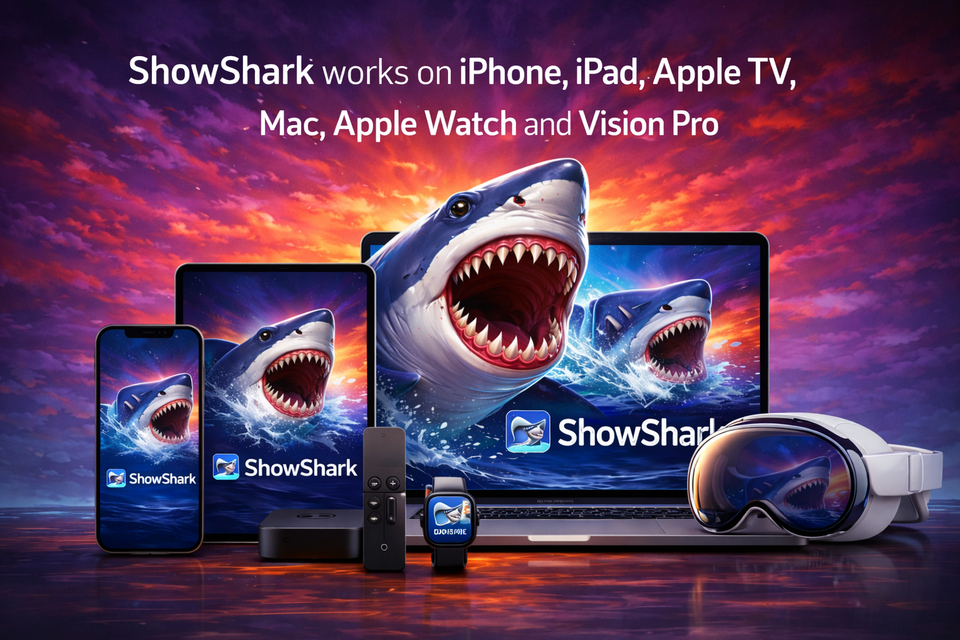
ShowShark streams your movies, shows, music and photos from your Mac to all of your devices.
About
ShowShark is:
- A client app for iPhone, iPad, Apple TV, Mac, Watch and Vision Pro that lets you browse, search and play your movies, tv shows, music and photos.
- A media server app for Mac, that searches, indexes and streams your media to the client app.
In this document we'll refer to "ShowShark server" and "ShowShark client". Know the difference.
ShowShark supports:
- Video Files: mp4, m4v, mov, avi, mkv, wmv, flv, webm, mpeg, mpg, 3gp, ts, mts and m2ts
- Audio Files: mp3, m4a, aac, flac, wav, aiff, ogg, wma, opus, alac
- Video Codecs: H.264 (AVC), H.265 (HEVC), MPEG1, MPEG2, MPEG4, VC-1, VP9, AV1 and Theora
- Audio Codecs: Doldby TrueHD, DTS / DTS-HD, AC3, E-AC3, AAC, MP3, MP2 (MPEG-1 Layer II), MP1 (MPEG-1 Layer 1), Opus, Vorbis, FLAC and PCM / WAV
This tutorial will walk you through downloading, installing and configuring ShowShark Server. If you're looking for assistance with ShowShark Client, see this tutorial.
Download
To get started, download ShowShark Server onto your Apple Silicon Mac. An Intel Mac will not suffice.
Install & Run
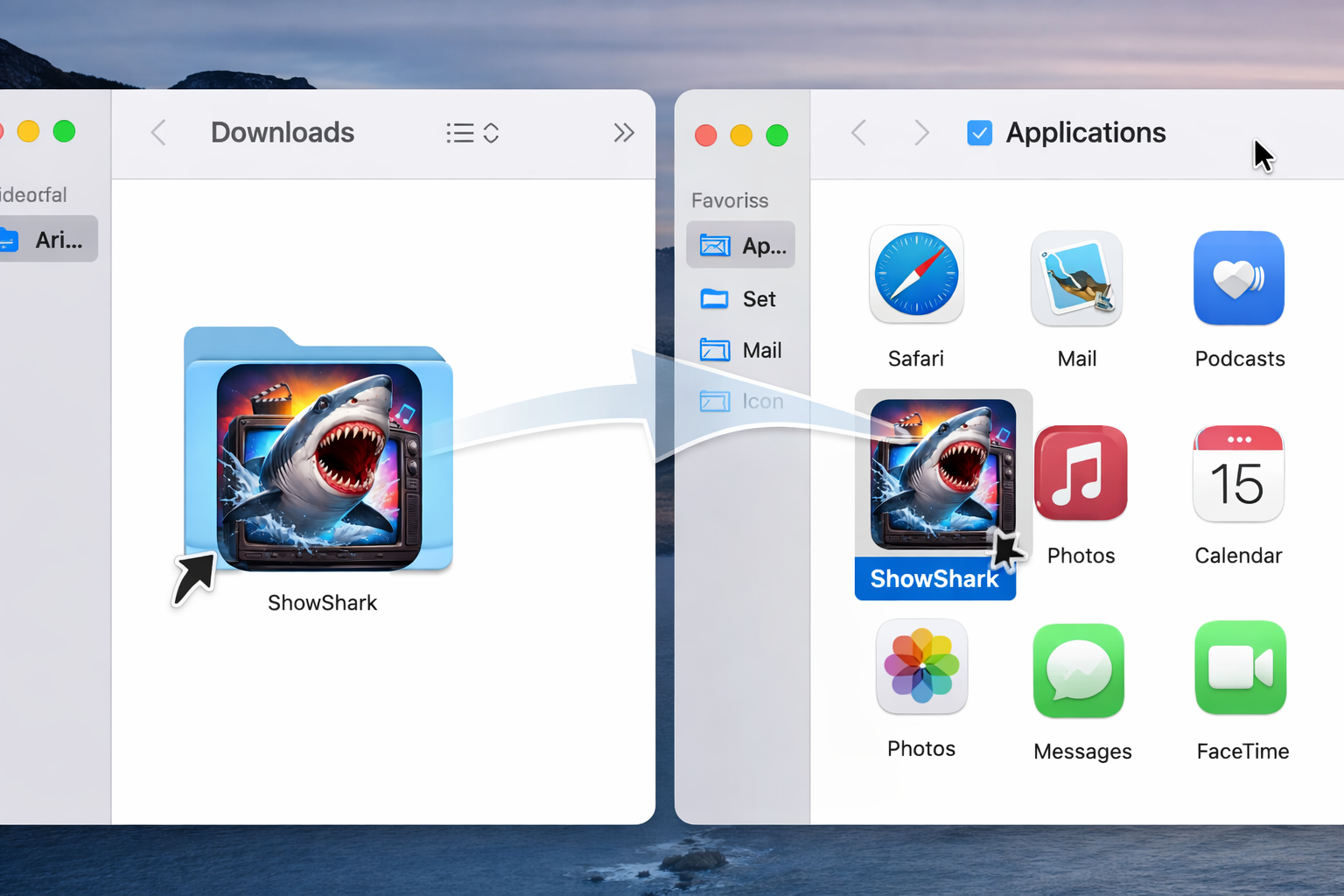
If your web browser does not automatically unzip the downloaded file, you'll need to double-click it to expand. Afterwards, you should have a file named "ShowShark Server". Drag this file to your Applications folder. Navigate to your Applications folder and double-click on ShowShark Server to launch the app.
Configure
In the following sections we'll look at each section of the ShowShark Server in detail. If you want to get up-and-running in the most minimal manner possible, you only need to configure one Location and you're ready to use the ShowShark Client app, manually browsing your media and playing it. For more advanced functionality and improved user experience, be sure to familiarize yourself with all of the available server options.
Locations
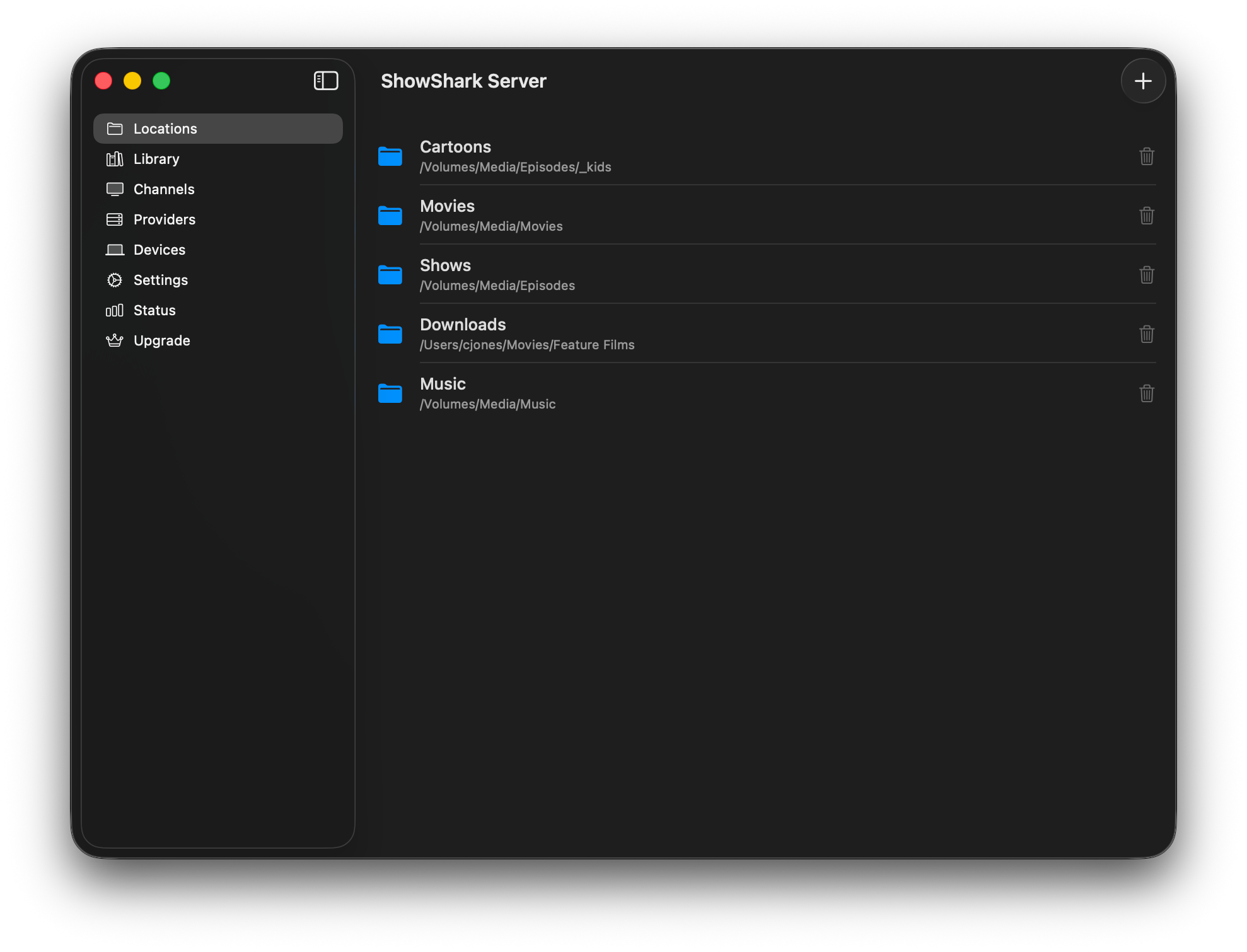
The Locations tab lets you select the folders containing your media: movies, tv shows and music. You do not need to separate your media by type, but if you have done so, you can select each folder here. These folders will be visible in the client app, and you can browse them and play the media they contain.
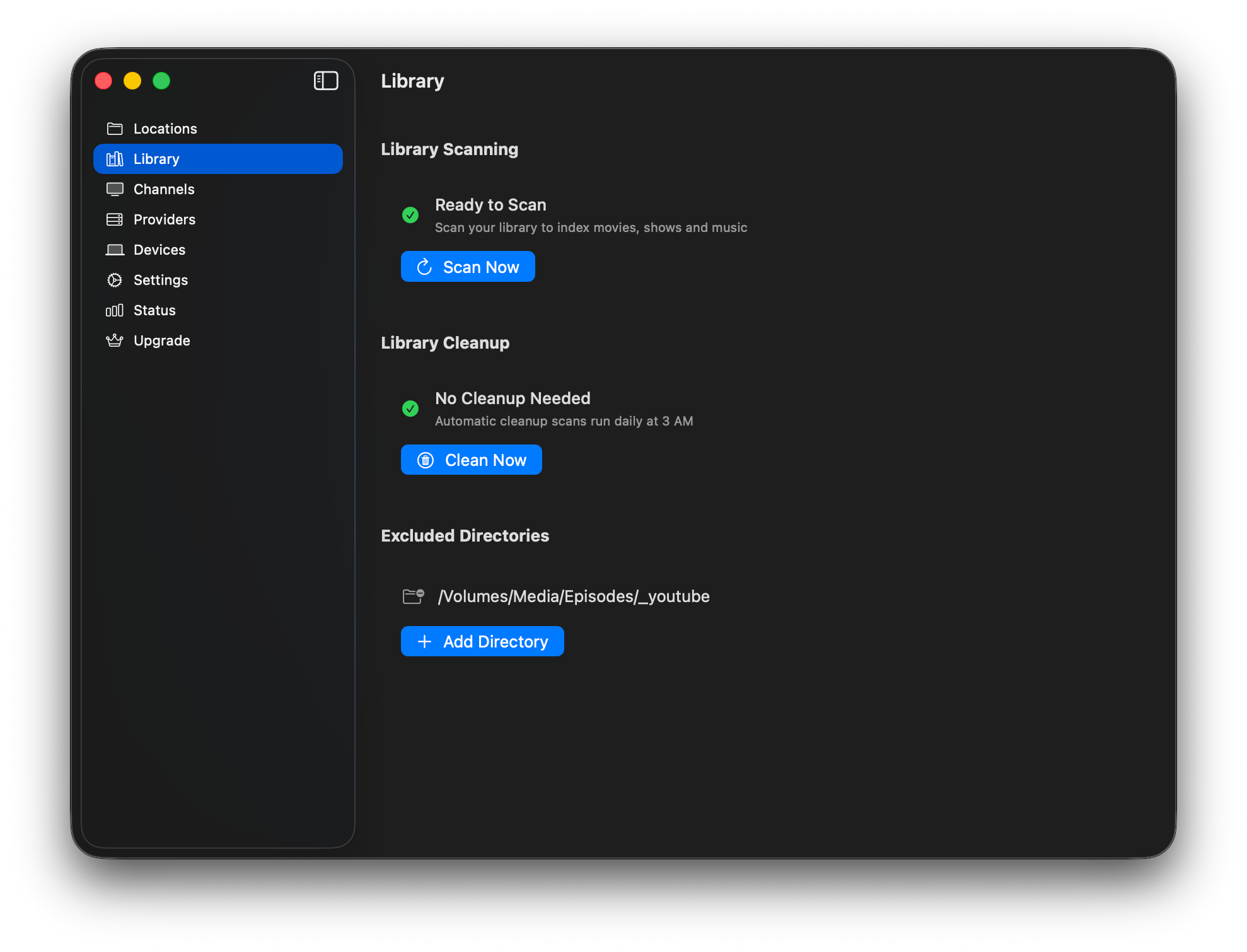
Library
The Library enables features such as Channels and Search, both of which depend on collecting metadata about your media, such as movie names, overviews, genres, rating, tv show ratings, descriptions, episode titles, music artist, album and track numbers, etc. ShowShark caches this metadata in its internal database.
The Search feature in ShowShark client app allows you to quickly find a movie by its name, see the actors, tap on an actor and see the other movies he has starred in, and so on.
You can read more about the Channels feature in a section below. It is a throwback to the broadcast television era.
Library Scanning
Once you have added each of your Locations, click this button to let ShowShark scan all of your media and add metadata to its internal library. For this to work, you first need to pay a visit to the Providers tab, which you can find described below.
Library Cleanup
The cleanup process runs periodically, and you can click this button to manually start it. This is the reverse process from the scanning feature. It scans all of the metadata in your library and then verifies that the files still exist. If it finds any missing files, it will alert you to this and ask you if it may clean up the database.
Excluded Directories
Sometimes you may have subdirectories in your media directories that you do not want ShowShark to scan and add to your media library. These folders are still accessible to ShowShark client by just manually browsing the directory structure, but ShowShark will not try to figure out the movie / show name and add it to the database.
Channels
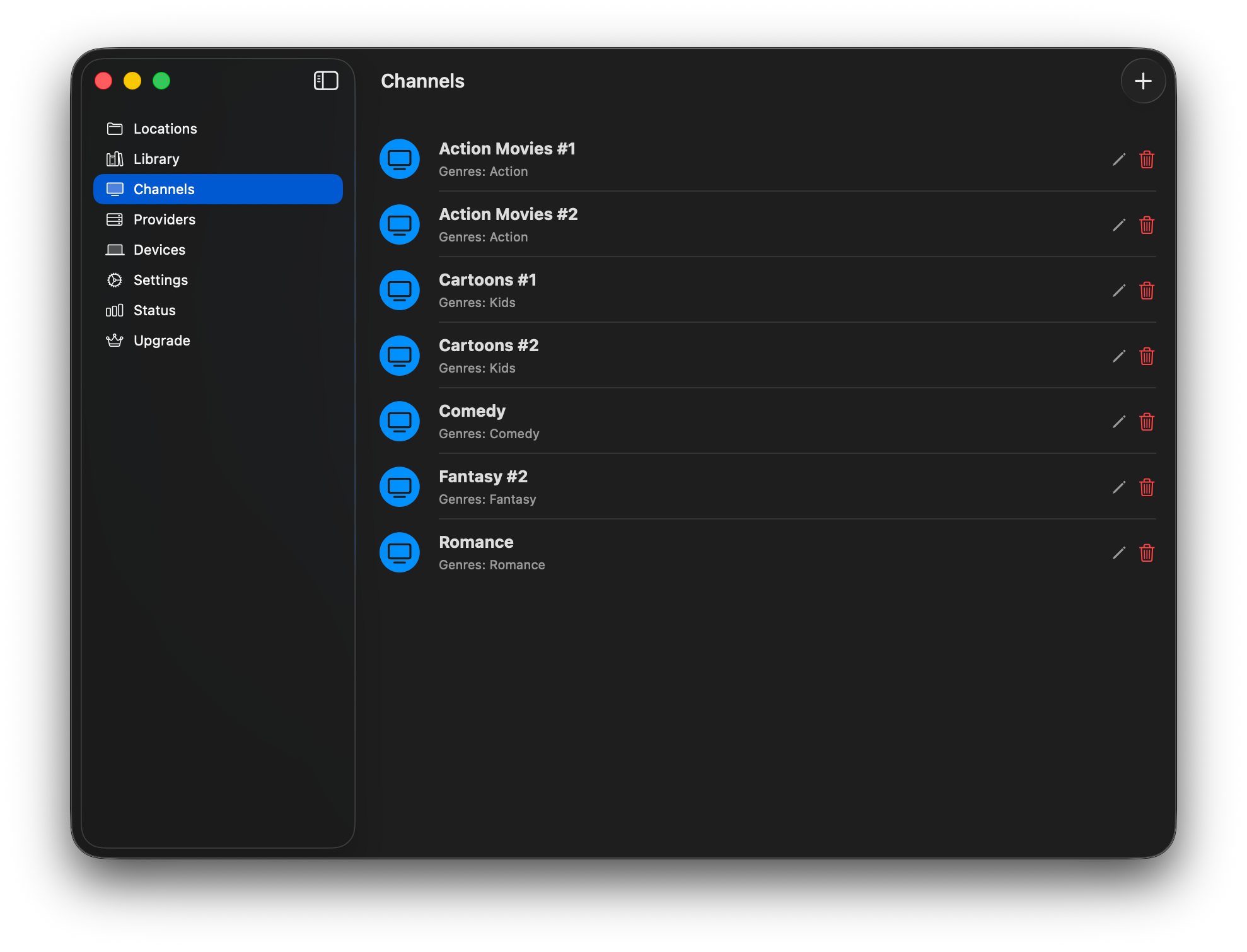
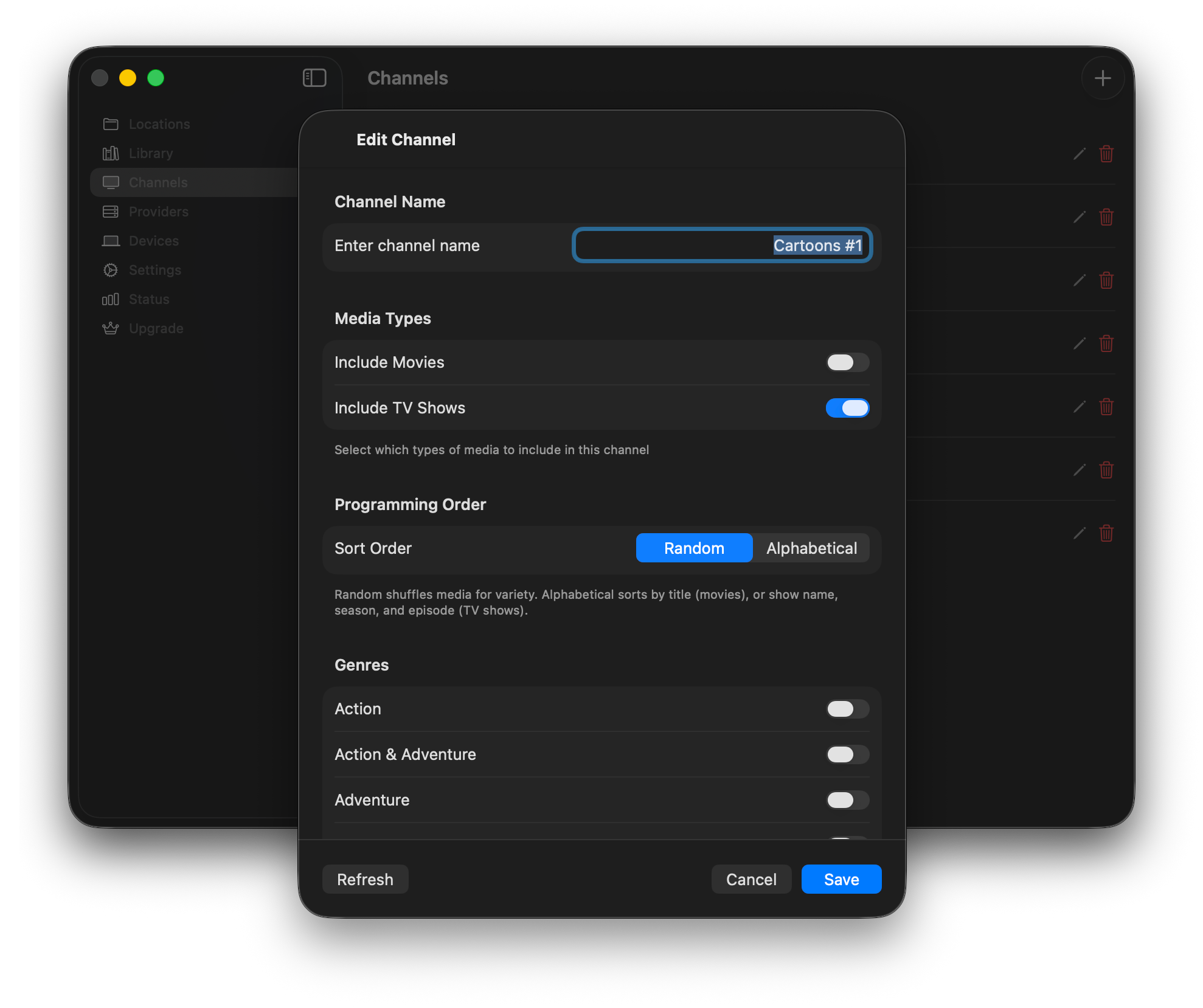
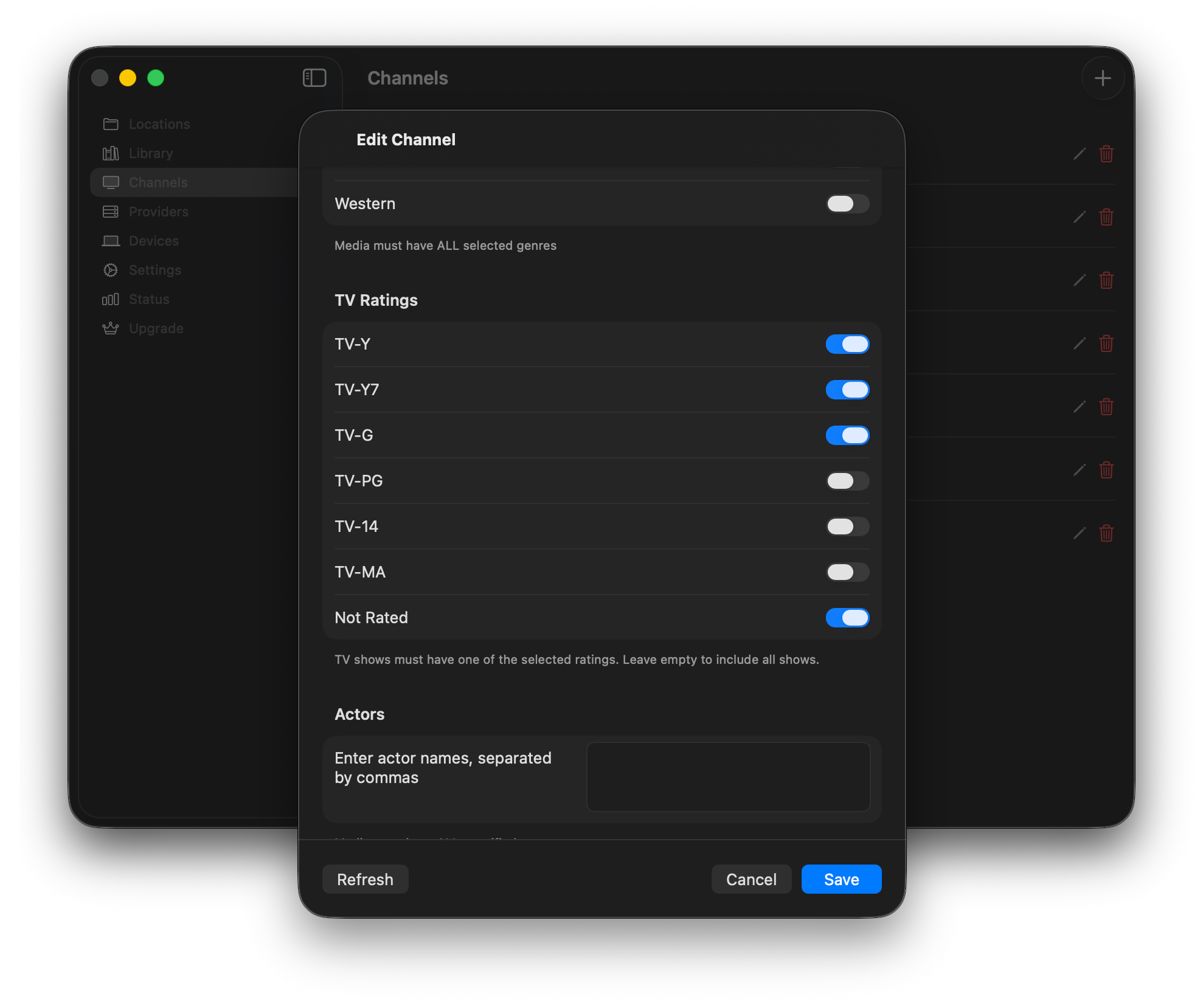
The Channels feature is a throwback to the era of broadcast television. Using the metadata that ShowShark discovers for your media, you can define Channels to playing some subset of that content based on the metadata, such as "Action Movies" or "Kids Cartoons".
This feature helps with the modern problem of having all the world's content at your fingertips and not being able to decide what to watch: just look at what's currently playing on your channels and pick a channel. So what if Die Hard is half over? The 2nd half is worth watching.
Providers
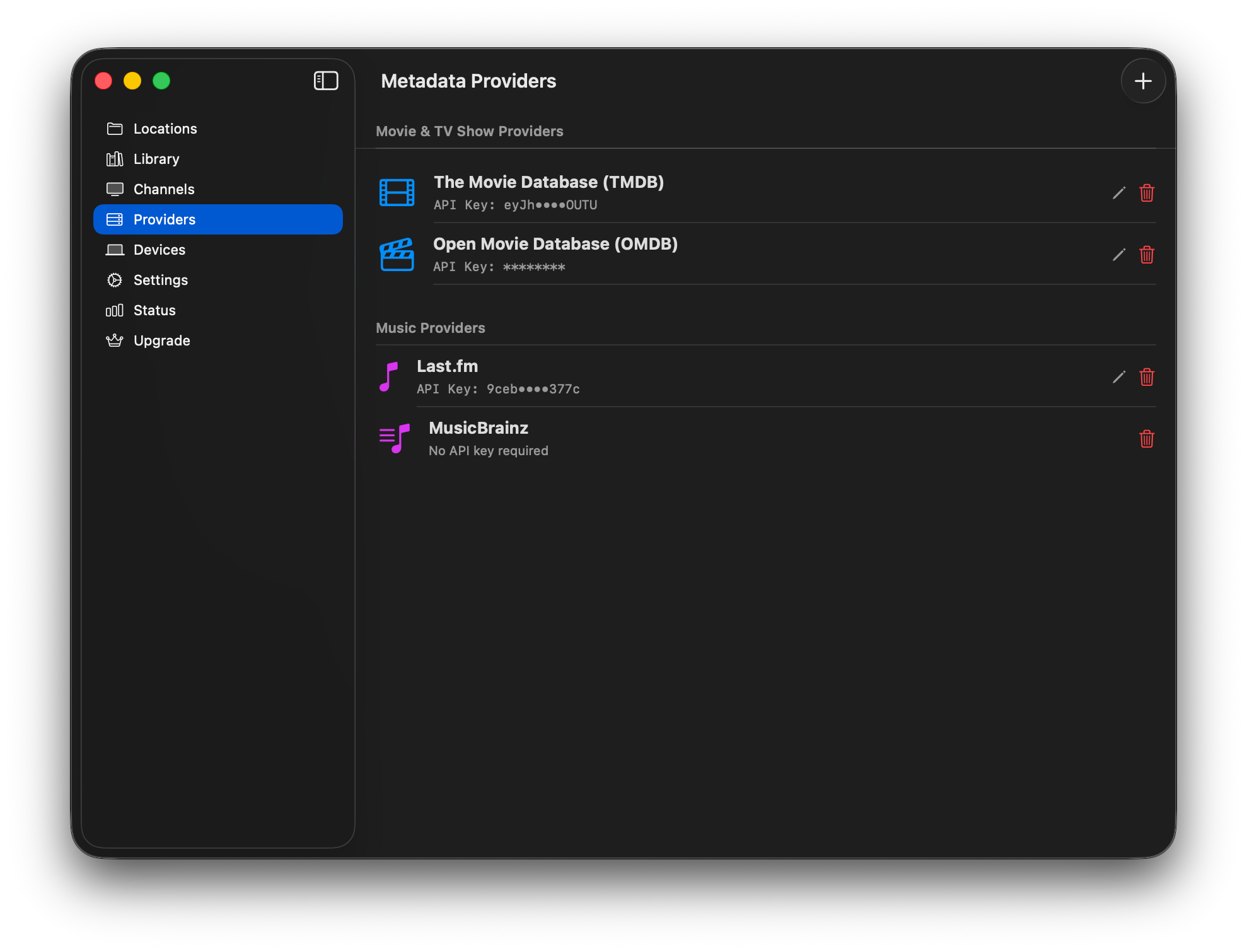
Metadata providers are at the heart of ShowShark's media scanning functionality. Click the "+" button to add a metadata provider. Follow the instructions to open up a web browser to that metadata provider's website, create an account and update ShowShark with your API key.
Supported providers include:
- The Movie Database (TMDB)
- Open Movie Database (OMDB)
- Last.fm
- MusicBrainz
Devices
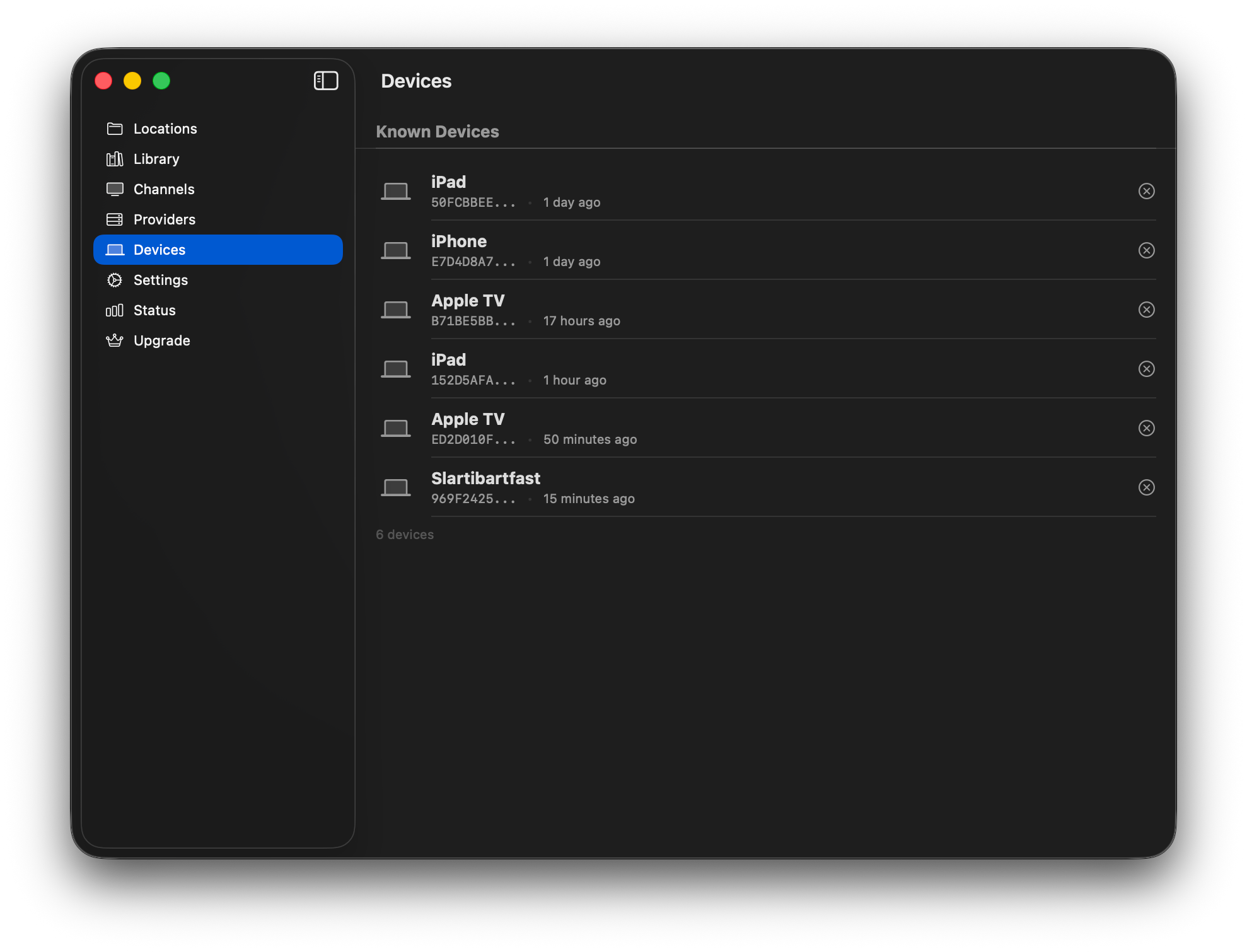
The Devices tab lets you see which iPhones, iPads, Apple TVs and Macs have connected to your ShowShark media server. This is entirely informational at this point; there's no actions you can take here.
Settings
Network
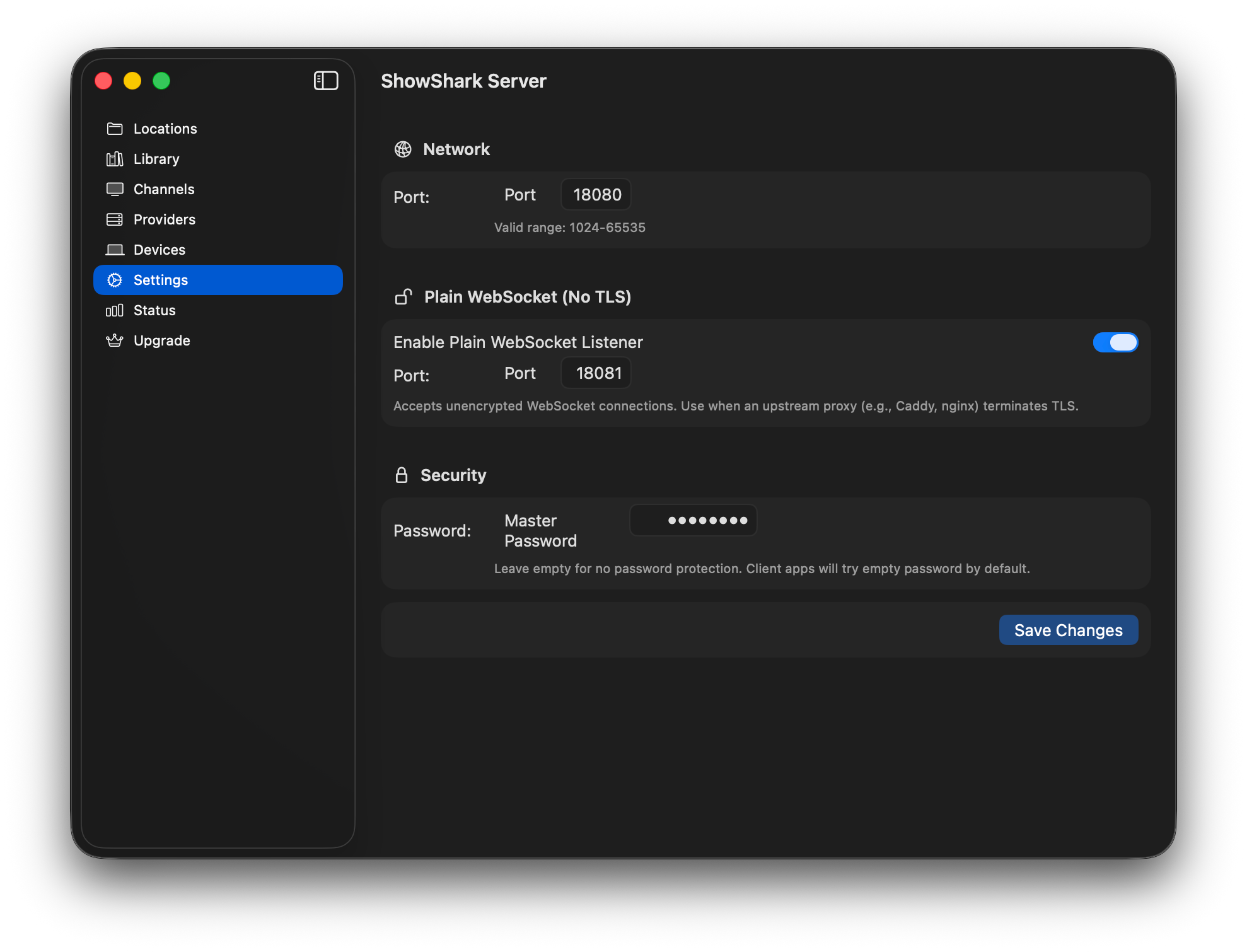
The default "listen port" for ShowShark media server is 18,080. All connections to ShowShark on this port are secured with TLS encryption. You should be able to just leave this alone – unless you really know what you're doing. Any change to this port number requires a restart of the ShowShark server.
Plain WebSocket
In some cases you want to make a "plain text" connection to ShowShark. Such connections lack TLS encryption. One such use case is when you're using Cloudflare Tunnels to remotely connect to your ShowShark server. In that case, the Cloudflare Tunnel daemon running on your computer will terminate the TLS encryption and make a plaintext (non-encrypted) connection to ShowShark. The default port for this is 18,081, and you can generally leave this default port alone unless you really know what you're doing, which you probably do if you're setting up Cloudflare Tunnels.
Security
By default, any ShowShark client app can connect to your ShowShark server without a password. You can set a single, master password here. When connecting from the ShowShark client app, to your ShowShark server, you'll have to provide this password.
Status
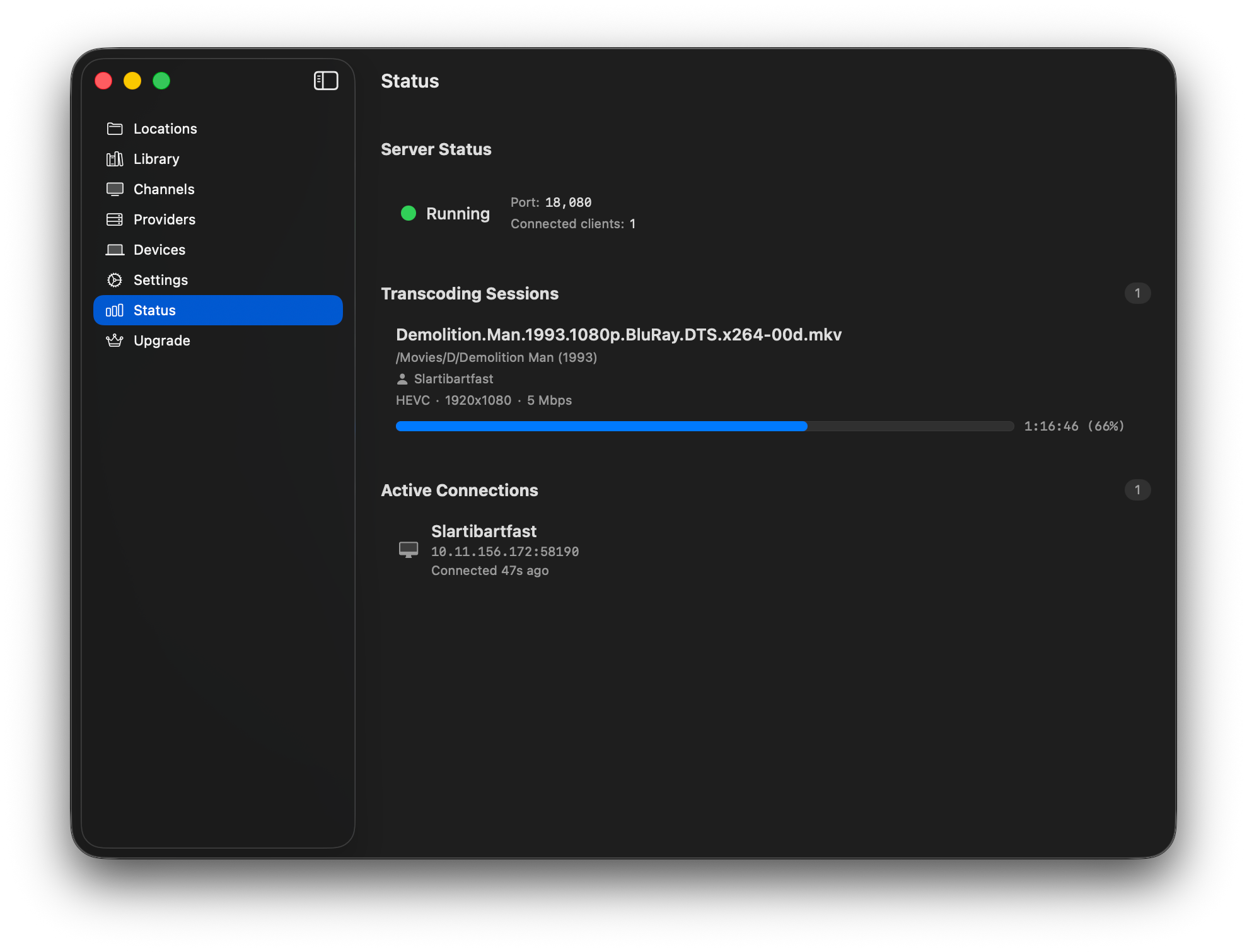
The Status tab lets you see what's going on in your ShowShark server. First, you can see a list of active playback (transcoding) sessions. Second, you can see a list of connections, which may or may not actually be watching or listening to anything.
This is all purely informational, and no actions can be taken at this point.
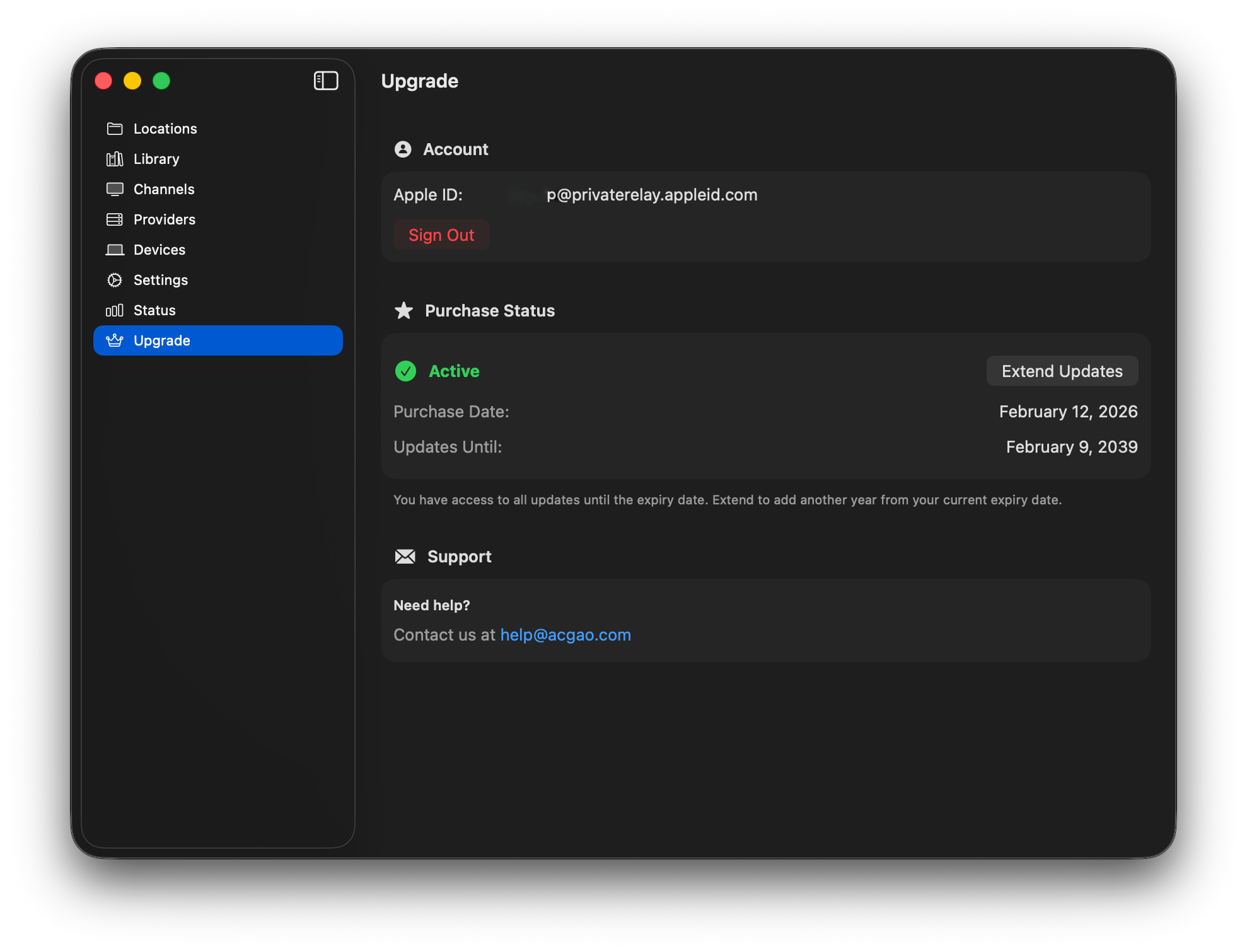
Upgrade
First, no subscriptions! Buy once, use forever.
The ShowShark client app is completely free, but the server app must be upgraded for full functionality. Without being upgraded, ShowShark server will limit streaming sessions to 15 minutes.
When you purchase ShowShark server, it is yours to use forever. You also receive one year of updates. After that period, you may continue to use ShowShark server in its fully upgraded, unlocked state, forever. You will not be able to use newer versions of ShowShark.
Before upgrading, try out ShowShark to make sure it fits your needs and works with your media.
As an early bird adopter, use the coupon code EARLYBIRD75 at checkout to get ShowShark for 75% off.