
ShowShark Release Notes v2026.11.15
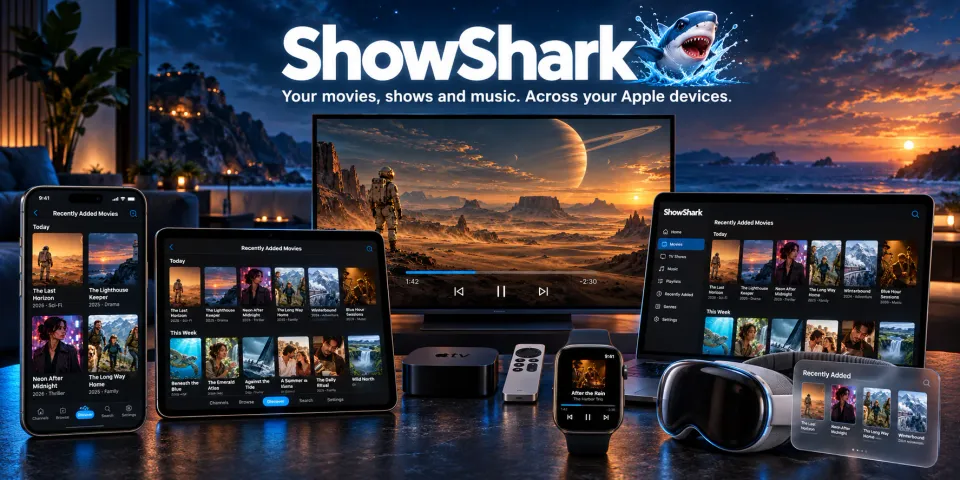
ShowShark is the Plex / Jellyfin / Emby alternative for those who appreciate finely crafted, native apps. Built for iPhone, iPad, Apple TV, Mac, Watch and Vision Pro.
Learn more at showshark.app.
Get ShowShark Now
- Download ShowShark here.
Overview
- Blu-ray subtitles for streaming and offline viewing. Watch with subtitles in their original style and position.
- More screen space for your library. A redesigned server screen replaces the sidebar on Mac, iPad, and Apple Vision Pro.
- More movies and TV shows identified automatically. Better title matching finds artwork and details for files that earlier versions missed.
Blu-ray subtitles and playback
- Watch with Blu-ray subtitles. ShowShark now displays PGS, the subtitle format used on Blu-ray, in Default and supported Original playback.
- Subtitles keep their original appearance. Fonts, colors, and positions follow the source, including captions placed above or beside a speaker.
- Better subtitle timing. Fixed flashing captions, missing opening lines, and subtitles appearing late after resuming a Blu-ray movie.
- Cleaner subtitle changes. Switching languages, turning subtitles off, or skipping through a video clears old captions more reliably.
- Subtitles work with more network and cloud files. When Original playback cannot provide embedded subtitles, ShowShark switches to Default and keeps your place.
- Fewer playback crashes on Apple silicon Macs. Fixed a Server crash that could interrupt a movie or show during playback.
Offline viewing
- Blu-ray subtitles work offline. New downloads can include them. Download an older copy again to add them.
- Missing subtitle choices return. Reconnecting to the original Server repairs missing text subtitle options in older downloads that contain subtitle text.
Your library and server screen
- Your library fills the window. On Mac, iPad, and Apple Vision Pro, the server list no longer takes space beside movies, music, and playback.
- A new server screen on iPhone, iPad, Mac, and Apple Vision Pro. Saved servers and nearby servers appear over ShowShark artwork.
- Open the server list while playback continues. Select the server name at the top of the library to shrink the connected app into a live preview. Select Return to go back.
- Connect with one press on Apple TV. Select a saved server to connect immediately. Press and hold for Edit, Delete, and other options.
- Settings are easier to find. Profile, Server, device, and support options now appear together in the connected app's Settings on iPhone, iPad, Mac, and Apple Vision Pro.
Better movie and TV show matching
- More shows get the right title and artwork. Matching handles season ranges, presenter names, alternate punctuation, accents, and minor spelling errors.
- Movie files keep their own titles. Movies stored directly in a library folder use their filenames instead of sharing the folder's name.
- More accurate movie matches by year. ShowShark recognizes the same movie when the folder's year differs from its listed release year by one.
- Fewer incorrect episode numbers. ShowShark reads explicit episode labels and common season and episode names more reliably.
- Unmatched titles get another check. The next library scan automatically retries movies and shows that earlier versions could not identify.
Remote streaming
- Update the Client and Server together. Remote streaming uses a new connection service. Update ShowShark Client and ShowShark Home or Studio; connect on the Server's local network if prompted.
- Clearer help when a connection fails. Messages explain when to update the Server, connect on its local network, or reopen the app.