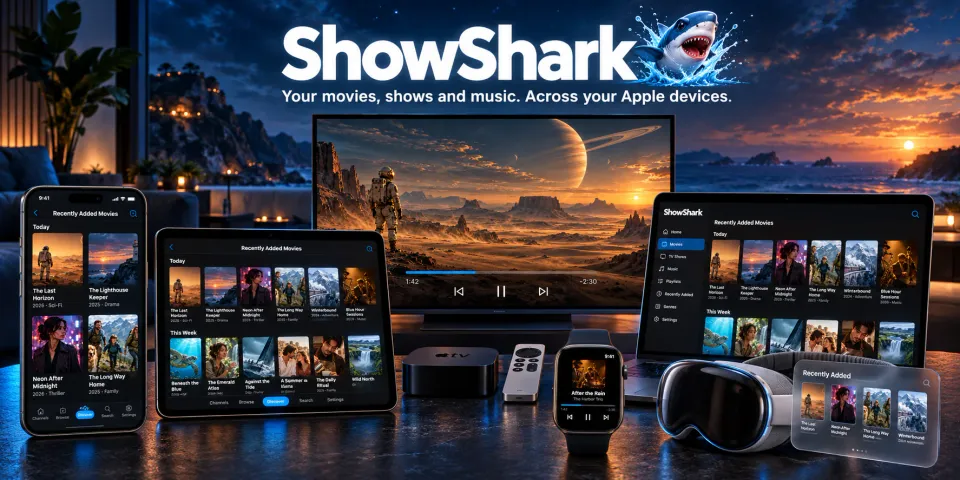
ShowShark has a new look. Movie, show, episode, person, and music pages now open on large artwork from your library. The Channels, Browse, Playlists, and Discover tabs, the video player, and the Apple TV server screen share the same dark, artwork-first design.
Search finds what you meant. A misspelled search such as "Wild kratz" now shows results for Wild Kratts. The Search tab also has a new design, with a color for each genre and a top result at the head of every search.
By Feel picks movies and shows to match your mood. The Discover quiz was rebuilt around ten moods, such as funny, dark, scary, and romantic. On a Mac with Apple Intelligence, the Server rates the mood of every title in your library on the Mac itself.
Move between sections with the new dial. On iPhone, iPad, Mac, and Apple Vision Pro, one round control at the bottom of the screen reaches every section of the app.
Music that keeps playing has its own Now Playing section. Go back to your music from any device, including Apple TV, where the old shortcut was out of reach.
Step to the next episode before you press Play. Previous Episode and Next Episode buttons change the episode without leaving the player.
Sort your movies by year or by date added. The Browse Movies list now offers five sort orders.
ShowShark remembers where you stopped more reliably. The app saves your place every 10 seconds, even while paused, and at once when you pause or skip.
Detail pages put your artwork first. Movie, TV show, episode, and person pages show the backdrop, poster, rating, and key facts at the top. The main actions, such as Open, Trailer, Add to Playlist, and Find Similar, sit together under the title. The cast appears in a row that you can scroll, and genres appear as buttons.
TV shows are easier to scan. Seasons appear in a strip that you can scroll. Each episode shows a picture with your watched progress along its bottom edge. Podcasts now show their artwork on the show page.
The page before playback is clearer. Badges show 4K, HDR, surround sound, and captions. When you have a saved position, choose Resume or Start Over on the page instead of in a pop-up. Audio, Subtitles, Audio Channels, Reduce Loud Sounds, Start From, and Resolution appear as tiles that open a list of choices.
Buttons say what they do. A button that opens a movie, episode, album, or artist now reads Open. Play appears only on buttons that start playback at once, such as a video playlist, a person's Play All, a trailer, or a live broadcast.
File Details shows every track at a glance. The page shows the video's picture or the album art, the file's format, length, and size, and one card for each video, audio, and subtitle track. Download and Copy Original File are at the top.
Channels, Browse, Playlists, and Discover share one design. Items appear as artwork cards in the shape of their pictures: posters for movies, square art for music and podcasts, and wide frames for photos and cameras. Items open as soon as you select them.
Browse shows more about your files. Each folder shows how many folders and files it holds, and each file shows its size. A library with no locations now shows a "No Locations" message instead of a blank page.
Playlists are easier to manage. Play, Rename, Change Icon, and Delete are at the top of each playlist. Pull down to refresh a playlist or Favorites. On Apple TV, focus goes back to the last item you selected.
Moving around the app
One dial reaches every section. On iPhone, iPad, Mac, and Apple Vision Pro, a round control at the bottom of the screen shows the current section. Press and hold it to spread every section around it, then slide to one and let go. You can also tap the dial and then tap a section, or swipe the dial sideways to go to the next section.
Every section name is easy to read. The names spread out like the spokes of a wheel, so they never overlap, even on a small iPhone.
The dial works with accessibility settings. VoiceOver reads each section as a button. With Reduce Motion on, the dial uses short fades instead of springy movement.
Apple TV looks more consistent. The tab bar and the page under it now share one background.
Search
Get results even when you misspell a title. When a search finds nothing, ShowShark tries the closest spelling from your library and shows "Showing results for" with the corrected words. For example, "Wildkrats" finds Wild Kratts, and "Startrek" finds Star Trek. A corrected search never shows a title that is hidden from your profile.
Search understands more ways to write a title. "Law and Order" finds Law & Order, and "Ben ten" finds Ben 10. When many episodes of one show match, the show itself also appears in the results.
A colorful new Search tab. Large artwork fills the top of the page. Each genre has its own color. A genre card shows how many titles the genre holds, with artwork from three of them.
Start from the top result. Each search opens on its best match, with one main button: Open for a movie or song, Episodes for a show, or Open Album and Open Artist for music. The other results follow, grouped by type. On Apple TV, each type has its own row that you can browse with the remote.
Search fits large screens. On a large Mac display, the Search page grows so that text and artwork stay easy to read.
Discover: By Feel
Recommendations based on ten moods. By Feel now places every movie and show on ten scales: humor, darkness, fear, warmth, romance, pace, weight, wonder, era, and length. Your thumbs-up and thumbs-down votes teach the quiz which mood you want tonight.
Your Mac rates each title's mood privately. On an Apple silicon Mac with Apple Intelligence and macOS 26 or later, the Server reads each title's description and rates its mood on the Mac itself. Other Macs use each title's genres and keywords instead.
Mood rating runs on its own. The Server rates new titles overnight, together with its other library upkeep. To start right away, open the Server's Library tab and select Tag Now under Mood Tags. The tool shows its progress and the time left.
The quiz knows when it has learned enough. A bar fills as the quiz learns your mood, and your results arrive when the bar is full. The quiz needs at least three thumbs-ups before it decides. You can open your results at any time.
Skip a round that misses the mark. When no card appeals to you, select None of these. The next set of cards moves in a different direction.
Adjust your results without starting over. The results page shows your mood as a set of buttons. Change one to move the list toward more or less of that mood.
Recently Added loads faster. The list loads once for each visit instead of again on every return, and more titles load as you reach the end.
Music
New artist, album, and player screens. An artist page shows a collage of album covers behind the name and each album's cover. An album page shows its cover large, one track list for each disc, and a new Go to Artist button. Artist and album pages also have a new Shuffle button.
A bigger player. The album art sits over a soft blend of its colors. New Previous and Next buttons change the track; for a single file, they skip 30 seconds. The More menu adds Go to Album, Go to Artist, and File Details.
Lyrics that are easy to follow. Lyrics use large type and keep the current line near the top. Select a timed line to jump to that part of the song.
More visualizer control. The visualizer shows the name of its style. On Apple TV, press left or right to change the style.
Now Playing on every device. When music keeps playing after you close the player, Now Playing becomes the first section of the app. It shows the artwork, track details, progress, playback buttons, Open Player, and Stop. On Apple TV, Now Playing is a tab you can reach with the remote, and Open Player continues the current track instead of starting it from the beginning.
Play/Pause on the Siri Remote resumes music. Before, the remote could pause music but not start it again.
The right song plays. Fixed a song that played a track from the last album or artist you played instead of the song you selected.
Watching video
Change episodes from the player. Before you press Play on a TV episode, Previous Episode and Next Episode move through the show in order, across seasons. They skip episodes whose files are missing. The artwork, tracks, and resume position update for the new episode.
New playback controls. One panel holds the title, Close Player, progress, playback buttons, and audio and subtitle choices. Chapters opens a list; select a chapter to jump to it. Skip Intro now appears in the same panel.
Controls stay up while you need them. The controls do not hide while the video is paused, while a menu is open, or while you move through the video or change the volume.
Better remote control on Apple TV. A caption names the button that has focus. Press any direction or Select to show hidden controls. Menu closes an open list first, then hides the controls, then leaves playback.
The Mac sidebar stays available. On the Mac, the window toolbar now appears with the playback controls, so you can close the sidebar during a video. The video no longer moves when the controls show or hide.
Every skip counts. Fast presses of the skip-forward button now each move the video forward, including on Apple TV. Before, presses during a skip could be lost.
Phone calls no longer end Original playback. After a phone call or another interruption on iPhone or iPad, the video picks up where it was instead of showing an error. Error messages are also shorter and easier to understand.
Original playback stalls less. Fixed stalls and stutters after resuming some TV episodes. When playback does stall, it now recovers on its own.
Default playback recovers its picture quality. After a very slow network moment, the picture now climbs back up instead of staying at its lowest quality. Picture quality also follows your connection more closely.
Pick up where you left off. The app saves your place every 10 seconds, even while the video is paused, and at once when you pause or skip. This also works in Picture in Picture and for music in the mini player.
Video thumbnails
Thumbnails show the exact moment. A thumbnail labeled 1:00 now shows the picture at exactly one minute, both in the grid and full screen. Before, the two could show different scenes.
Swipe through full-screen thumbnails. Swipe left or right to see the next or previous minute. On a Mac, use a two-finger swipe or the arrow keys. On Apple TV, swipe on the remote, then click to play from the picture on screen.
The thumbnail grid fills the screen. Thumbnails now fill the full width with no gaps, and each one takes the shape of the video.
Browse
Sort movies five ways. Browse Movies offers Title (A–Z), Title (Z–A), Year (Newest First), Year (Oldest First), and Recently Added. The year orders group movies under a heading for each year. Each device remembers your choice.
Titles sort where you expect them. Titles that start with a quotation mark or an accented letter now sort by their first letter. For example, "Pimpernel" Smith now appears under P.
History fits your window. The History grid now always sizes its columns to the width of the window.
Apple TV
A new server screen. The ShowShark artwork fills the screen behind your servers, and the focus highlight is easier to see. Add Server, Downloads, Settings, About, and Our Apps sit under the title. Each server shows its address and how it connects.
Simpler server forms. Add Server and Edit Server show errors on the form instead of in a pop-up. A server found on your network lists its addresses so you can choose one.
Help is one scan away. About shows the support website as a QR code that you can scan with your phone.
Artwork appears in the player. Fixed missing artwork on Apple TV in the player, scrub previews, Now Playing, and podcast and radio backgrounds.
Connection fixes. A wrong password now shows a clear message. Deleting the server you are connected to now disconnects first.
Episode collections on Apple TV. Admins can now add a YouTube video to a collection from its episode page.
YouTube
Clear messages when YouTube limits your server. When YouTube limits requests or asks for a bot check, ShowShark explains what happened and waits a minute before it tries again. Videos you opened recently can still play.
Updated YouTube support. ShowShark includes an updated YouTube downloader for recent changes on YouTube's side.
ShowShark Home and Studio
More free disk space. At launch, the Server removes temporary files that a crash or a forced quit left behind.
Outdated thumbnails are cleared. At launch, the Server removes video thumbnails made with the old method and makes exact ones again as needed.