ShowShark Client Tutorial
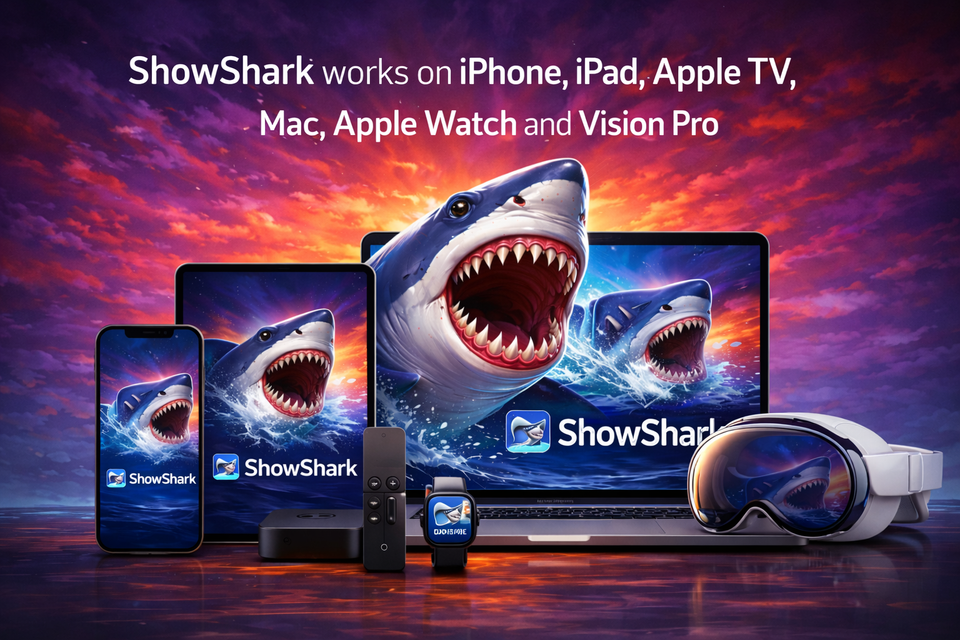
ShowShark streams your movies, shows, music and photos from your Mac to all of your devices.
About
ShowShark is:
- A client app for iPhone, iPad, Apple TV, Mac, Watch and Vision Pro that lets you browse, search and play your movies, tv shows, music and photos.
- A media server app for Mac, that searches, indexes and streams your media to the client app.
In this document we'll refer to "ShowShark server" and "ShowShark client". Know the difference.
ShowShark supports:
- Video Files: mp4, m4v, mov, avi, mkv, wmv, flv, webm, mpeg, mpg, 3gp, ts, mts and m2ts
- Audio Files: mp3, m4a, aac, flac, wav, aiff, ogg, wma, opus, alac
- Video Codecs: H.264 (AVC), H.265 (HEVC), MPEG1, MPEG2, MPEG4, VC-1, VP9, AV1 and Theora
- Audio Codecs: Doldby TrueHD, DTS / DTS-HD, AC3, E-AC3, AAC, MP3, MP2 (MPEG-1 Layer II), MP1 (MPEG-1 Layer 1), Opus, Vorbis, FLAC and PCM / WAV
This tutorial will walk you through using the ShowShark client app. If you're looking for assistance with ShowShark Server, see this tutorial. You must have a ShowShark server running to make use of ShowShark client.
Download
If you have not already installed ShowShark on your iPhone, iPad, Apple TV or Mac, you can find it in the App Store here.
Servers
Saved Servers
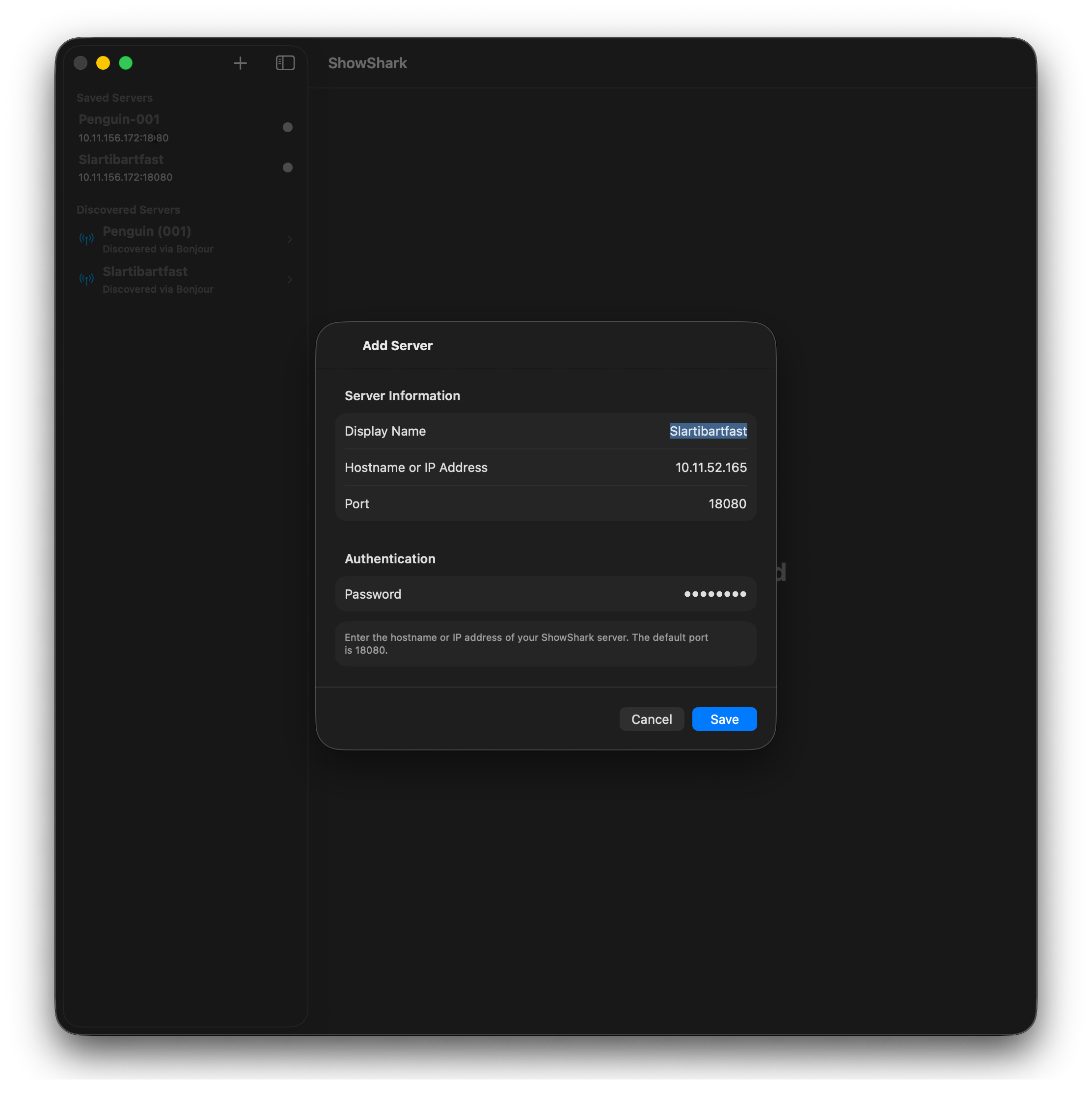
Once you have added a server connection, it will appear under this heading. Just tap on its name to connect to it. You can manually add a new server connection using the "+" button above this list. You must provide the hostname or IP address of your ShowShark server and its password.
Discovered Servers
If you're using ShowShark client on the same network with your server, the client app should be able to automatically discover the server using Bonjour. In that case, your ShowShark server will appear under the "Discovered Servers" heading. Tap on it to get started with adding it.
In the popup that appears, you can confirm that the IP address discovered is the one you want to use. You can also provide the password for the server (if you configured one when you were setting up the server). Save this and you're ready to connect.
Main Screen
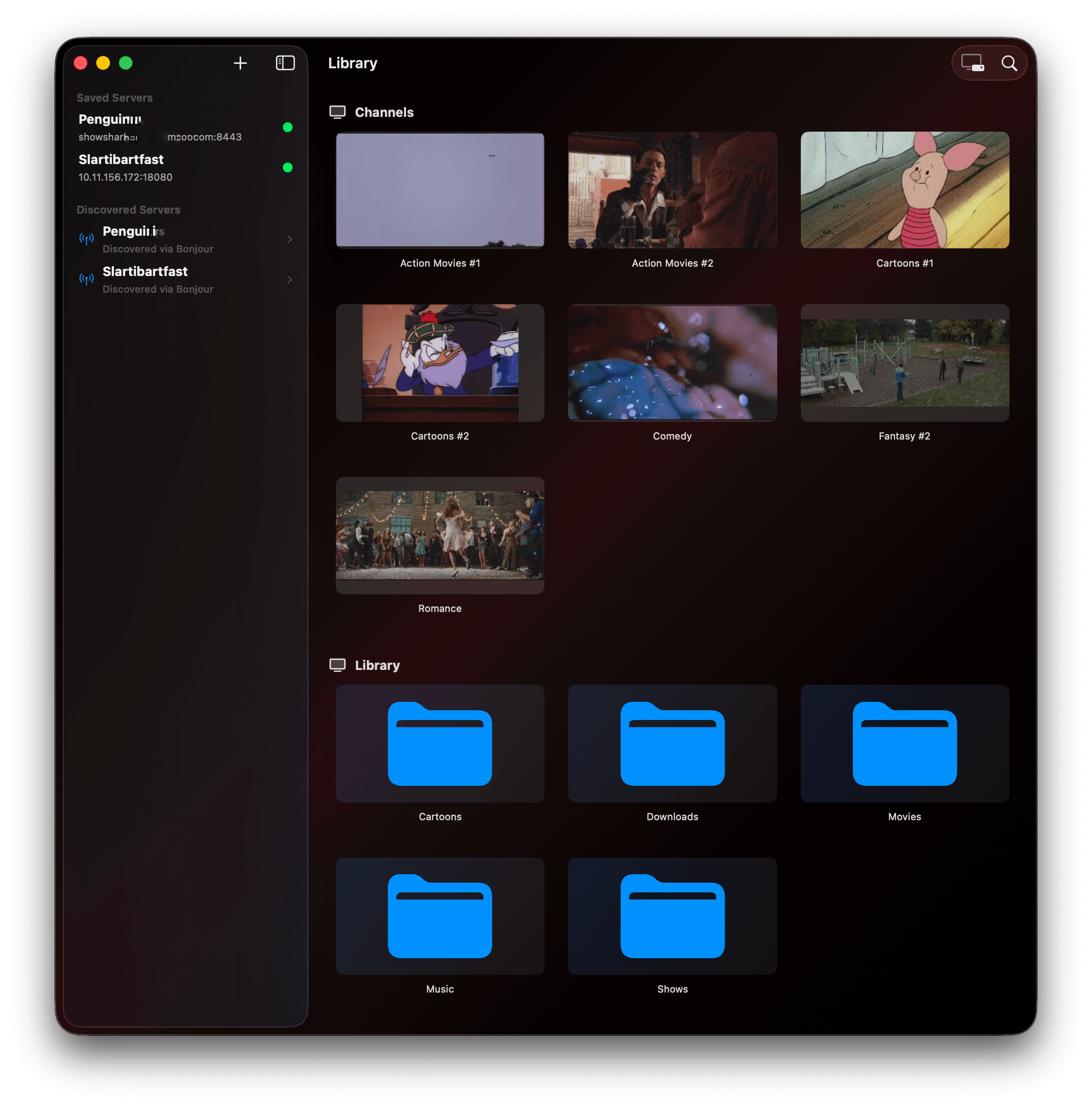
The main content of the media screen is divided into three sections: Channels, Library and History. We'll discuss each in turn. Also, at the top-right of the screen you have access to the TV Guide button and the Search button.
Channels
The Channels feature is a throwback to the era of broadcast television. Instead of wandering aimlessly through your content, trying to figure out what you want to watch, you can "tune in" to your Action Movies channel, or your Kids Cartoons channel. Even if Die Hard is half way over, the 2nd half of Die Hard is still worth watching.
Library
The Library section allows you to navigate the folder hierarchy of your shared media directories. Once you find the movie, tv show or music you want to play, you just tap on it and you're off.
History
The History section allows you to quickly see and continue playing anything you have played recently. Items are automatically added to this list as you watch things.
Channel Guide
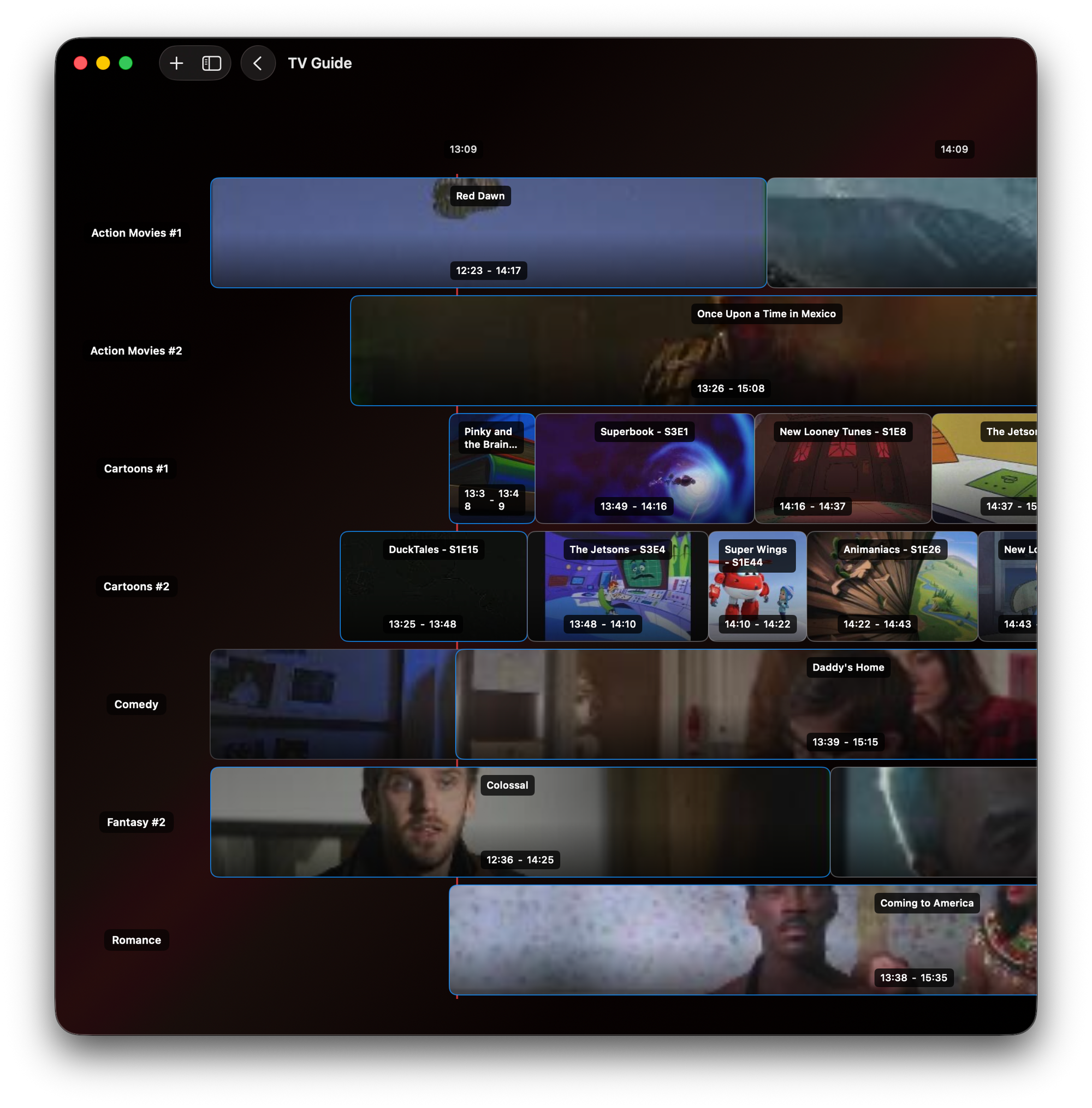
You don't have to wonder what's playing on each of your channels. Tap on the Channel Guide button and you can see the next 24 hours of programming for each channel. Tap on any item in the schedule to learn more about it.
Search
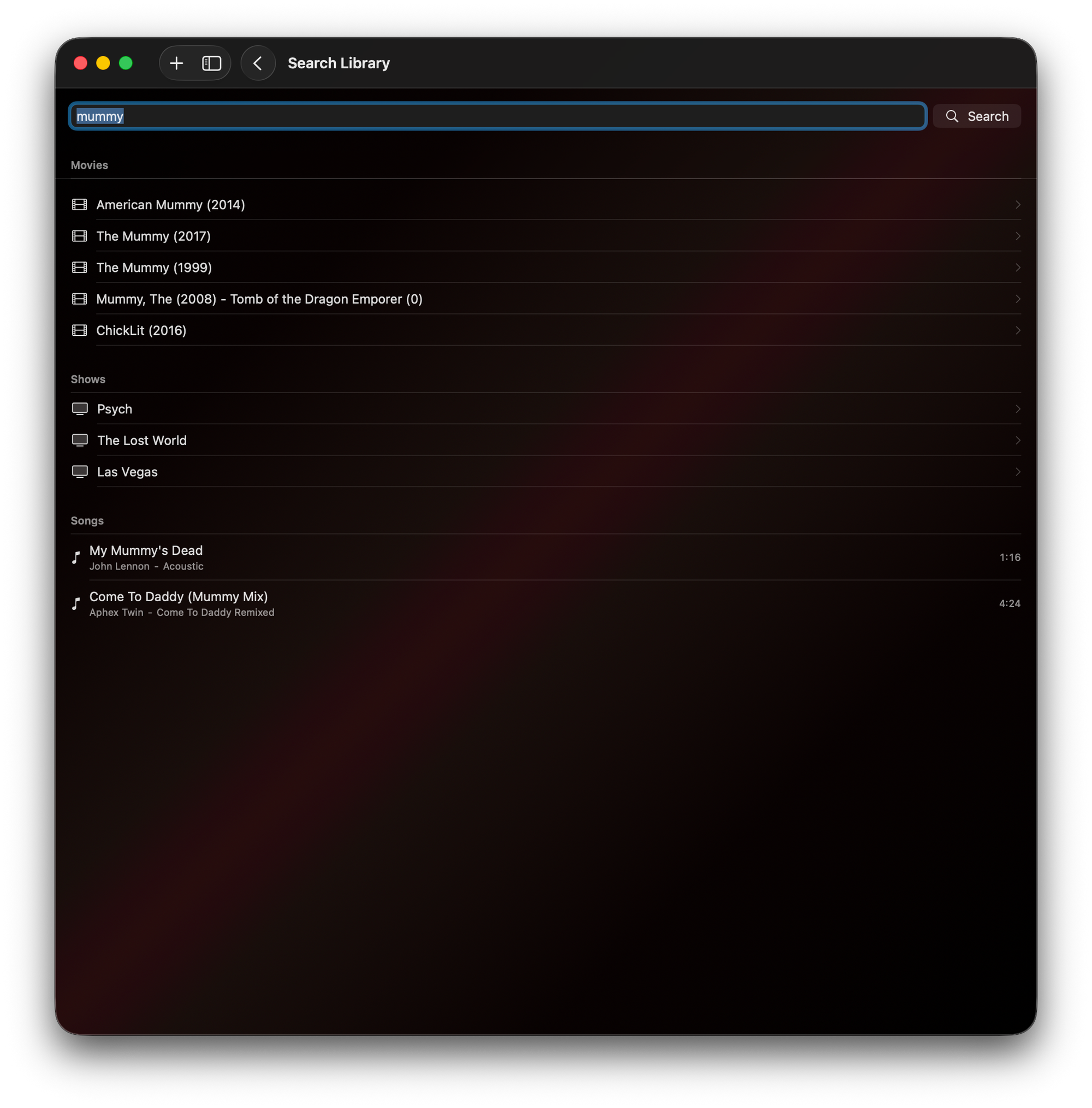
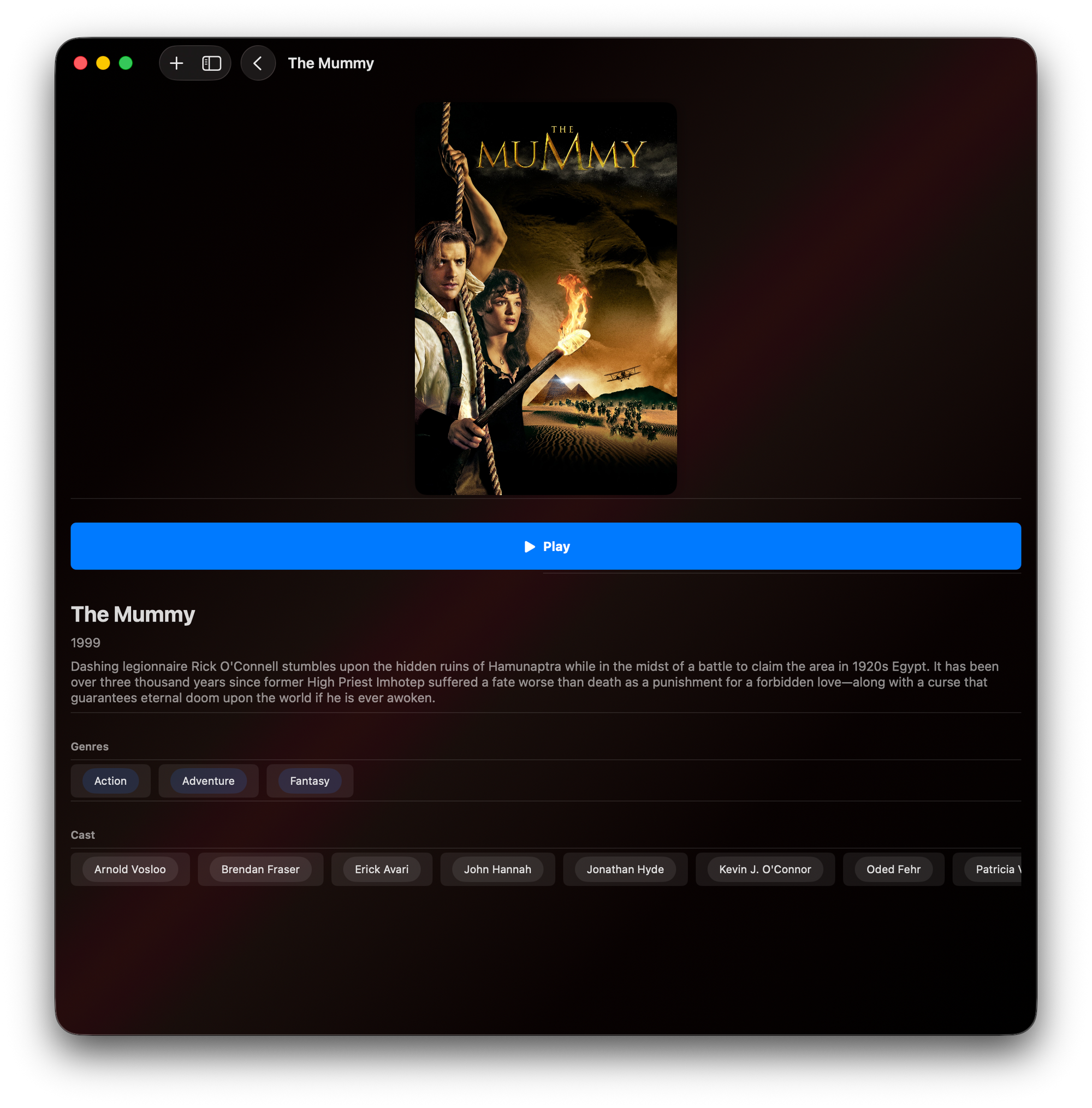
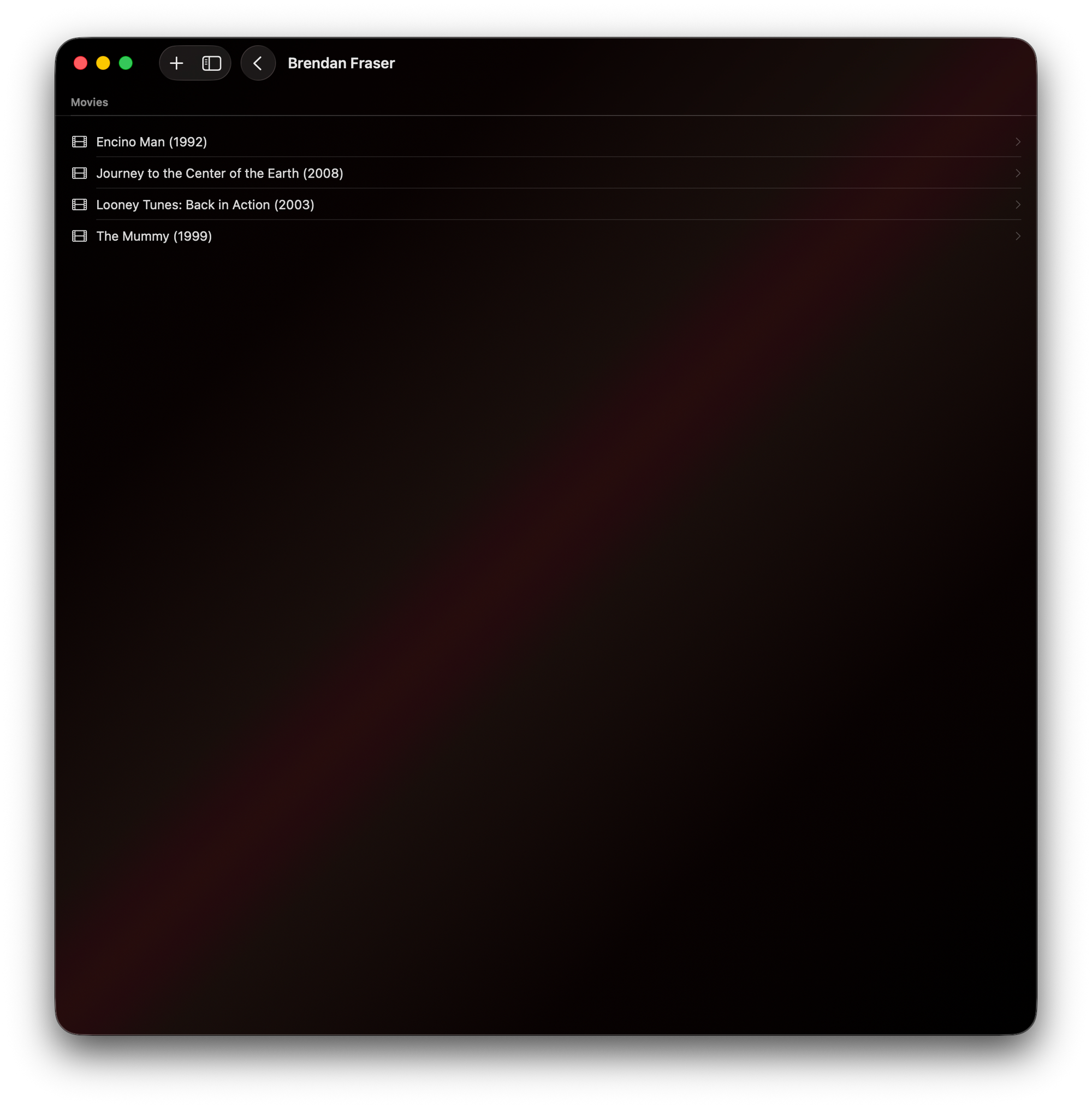
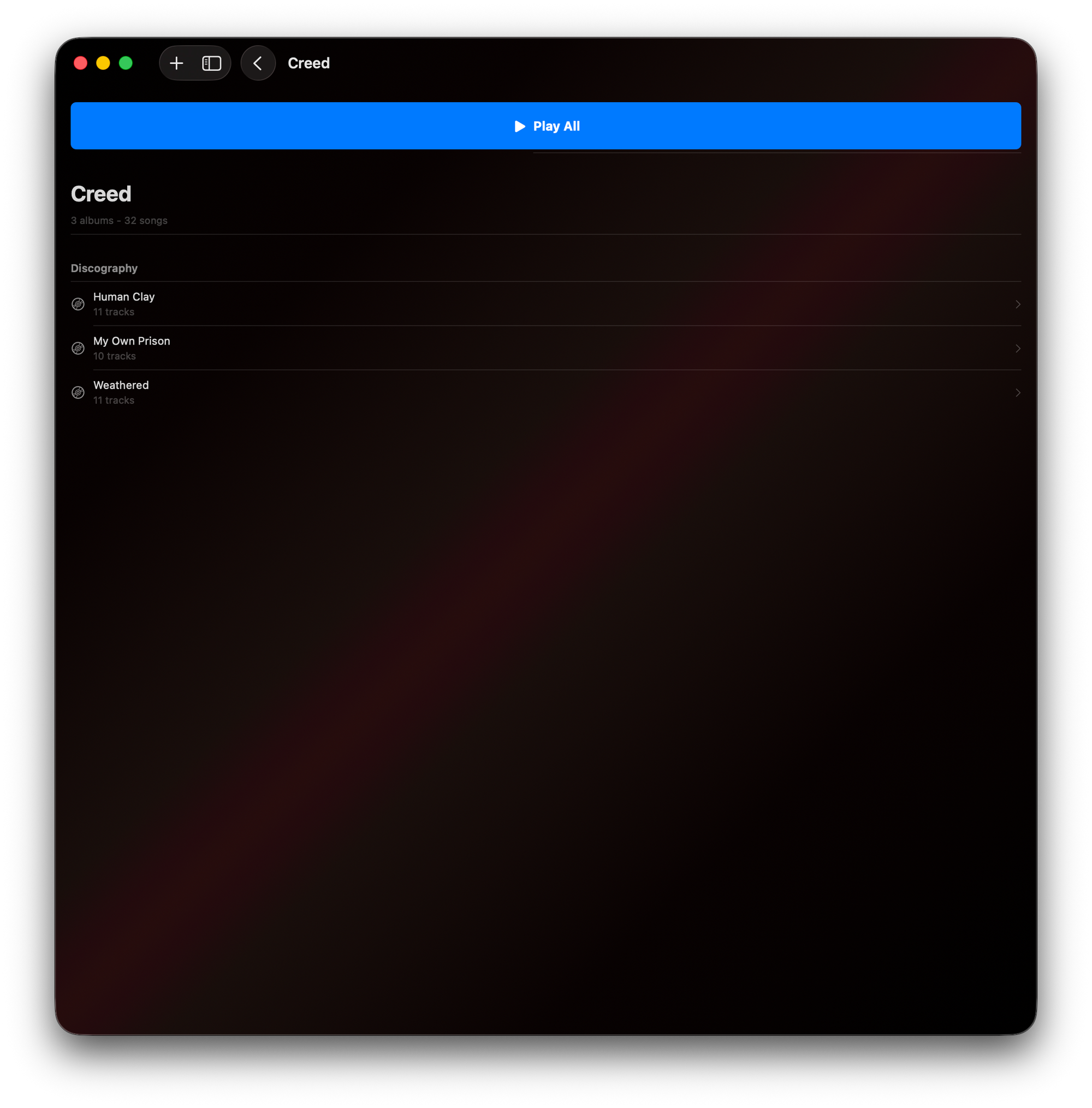
You know what you want, but you don't want to have to manually browse to it. Search for it instead. Searching incorporates movie and tv show names, descriptions, actor names, episode names, musicians, album names, track names and more. The search results are grouped by the type of content. Tap on any search result to discover more.